How to Add a QR Code to Your Email Signature
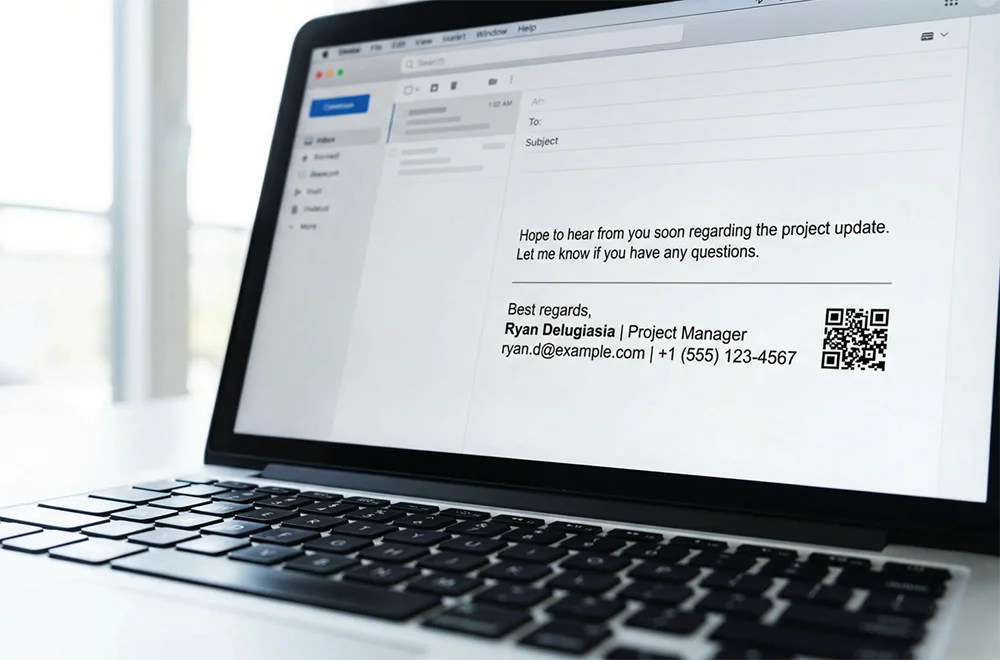
Every email you send is a chance for someone to save your contact info. Most people ignore email signatures — they skim past the name, title, and phone number. But a QR code in your signature gives them a way to save everything in one scan instead of typing it out.
Here's how to set it up in any email client.
Why it works
Think about how people read emails on their phone. They're looking at your message on one screen. Your signature has your phone number, email, maybe a website. To save you as a contact, they'd have to switch apps, create a new contact, switch back, and type everything in manually.
Nobody does that.
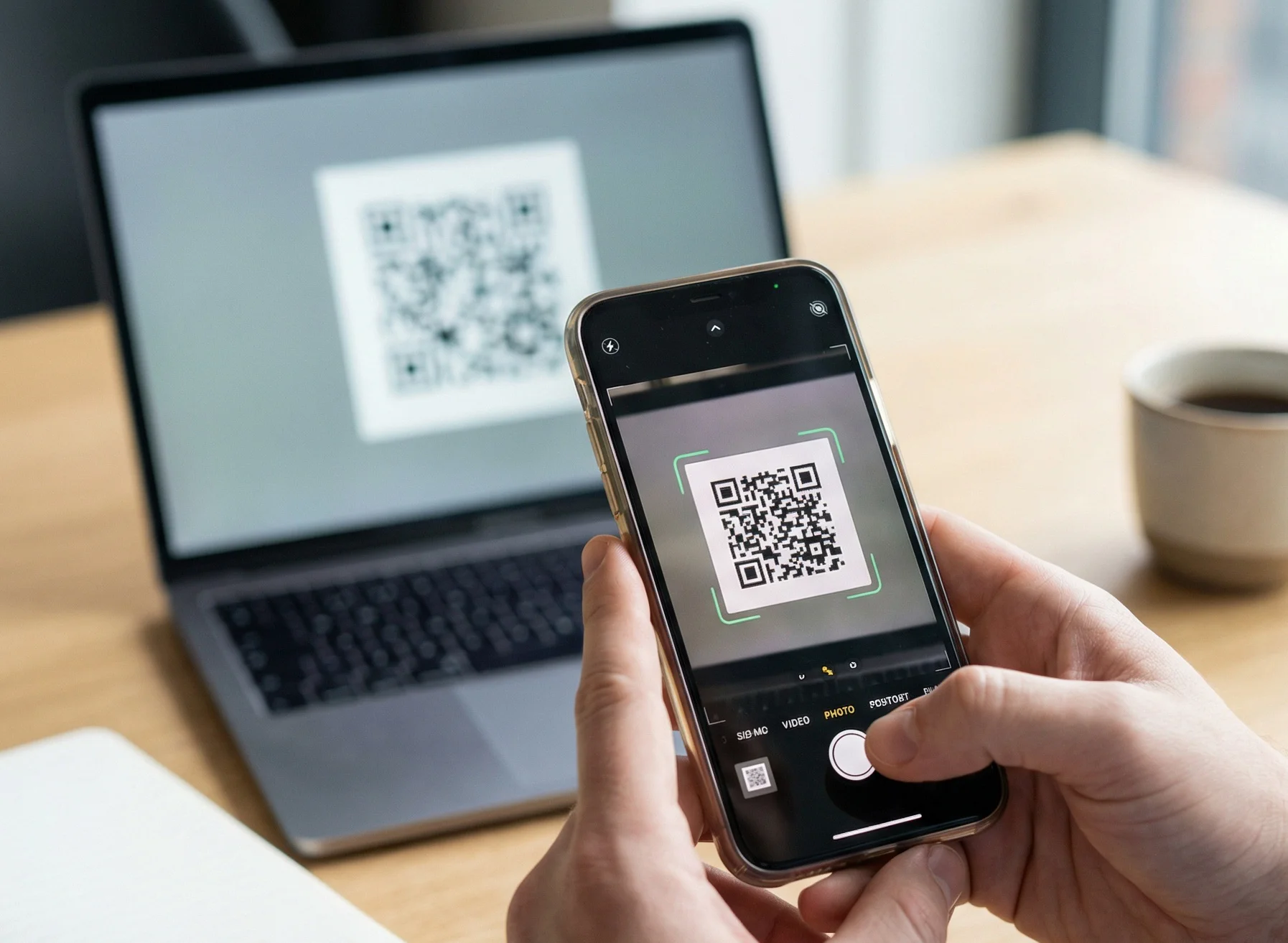
A QR code changes the equation. They see the code in your signature on their laptop, scan it with their phone, and your contact saves instantly. Two seconds, no typing.
Step 1: Create your QR code
You need a QR code that contains your contact information — not just a link to your website. A vCard QR code stores your name, phone, email, title, company, and website all in one scan.
- Go to QR Code Better and create a free account
- Choose "vCard" as the QR code type
- Enter your contact details
- Download the QR code as a PNG image
Use a dynamic QR code if you want to track scans and update your info later without changing the image. Use a static vCard QR if you just want a simple code that works forever with no account needed.
Step 2: Size it right
Email signature QR codes need to be small enough to not dominate the signature, but large enough to scan. Aim for about 80 to 100 pixels square. That's roughly the size of a small thumbnail — visible but not overwhelming.
If you make it too small, phone cameras won't pick it up. If you make it too big, it looks unprofessional and pushes your signature layout around.
Step 3: Add it to your email client
Gmail. Go to Settings → See all settings → General → Signature. Click the image icon in the signature editor and upload your QR code PNG. Position it next to your contact info.
Outlook (desktop). Go to File → Options → Mail → Signatures. Click in the editor where you want the QR code, then Insert → Picture and select your PNG file. Right-click the image to resize.
Outlook (web). Settings → View all Outlook settings → Mail → Compose and reply. Insert the image using the image icon in the signature editor.
Apple Mail. Go to Mail → Settings → Signatures. Drag your QR code image directly into the signature editor. You can position it next to your text.
For any other email client, the process is the same: find the signature settings, insert an image, and upload the QR code PNG.
Step 4: Test it
Send yourself a test email. Open it on your phone. Try scanning the QR code from the screen. If it works, you're good. If the code is too small or blurry, go back and adjust the size.
Also test by sending to a friend with a different phone. What works on your iPhone might look different on their Android — but QR codes are universal, so scanning should work on both.
Tips for a clean signature
Keep it minimal. Your QR code should sit next to your text, not below a wall of quotes, logos, and social icons. The simpler the signature, the more the QR code stands out.
Add a short label. Put "Scan to save contact" in small text under or next to the QR code. Most people know what QR codes do, but a hint removes any doubt.
Use a high-contrast QR code. Black on white works best. Avoid colored QR codes in email signatures — they can get lost against different email backgrounds.
Don't link the image. Some people make the QR code image clickable with a hyperlink. This can help desktop users, but it can also confuse people who try to scan it. Pick one or the other.
Dynamic vs static for email signatures
A static vCard QR code bakes your contact info directly into the code. It works forever, even offline, with no tracking. The downside: if your phone number or title changes, you need to generate a new QR code and update your signature.
A dynamic QR code points to a hosted contact page. You can update your info anytime without changing the image in your signature. You also get scan analytics — how many people actually scanned your signature QR and when. The tradeoff is that it requires an internet connection to work.
For most people, dynamic is the better choice for email signatures since contact details change over time.
Get started
Create your free vCard QR code and add it to your email signature in about five minutes. Every email you send becomes an easy way for people to save your contact — without any extra effort on your part.