How to Make a QR Code
You've seen QR codes on restaurant menus, business cards, event flyers, and product packaging. You know they work — you've scanned plenty yourself. Now you need to make one for your own business, project, or event.
The good news: creating a QR code takes about 60 seconds. The better news: if you do it right from the start, you'll save yourself from the headaches that trip up most first-timers — broken links, blurry prints, and codes that can't be updated after they're already on 500 flyers.
This guide walks you through the entire process, from picking the right QR code type to downloading a print-ready file you can actually use.
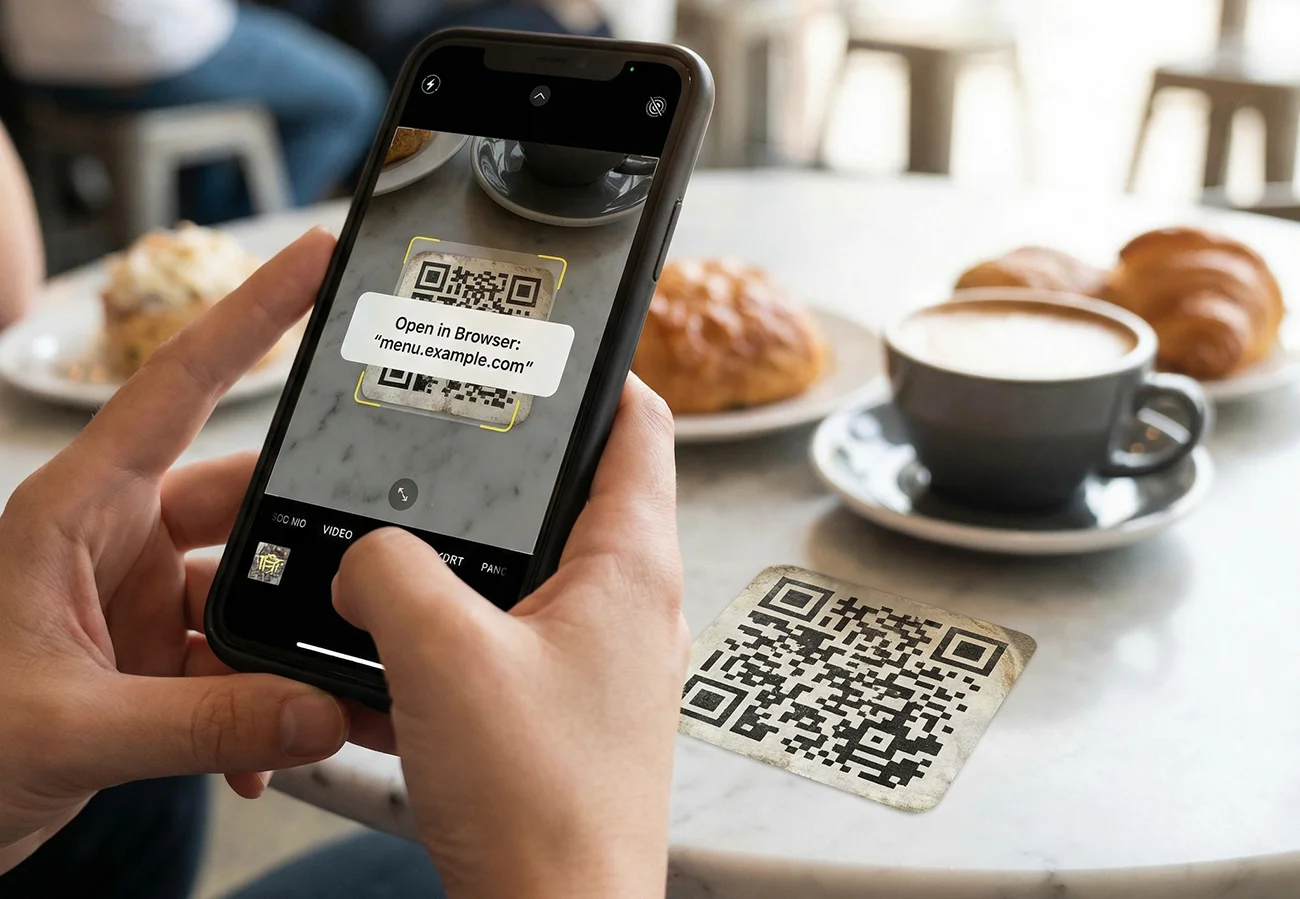
Step 1: Decide what your QR code should do
Before you generate anything, you need to answer one question: what happens when someone scans this code?
QR codes aren't just for websites. They can trigger all kinds of actions on a phone. Here are the most common types and when to use each one:
URL (website link) — The most popular type. Use this to send people to a landing page, product page, booking form, portfolio, or any web address. If you're running a marketing campaign, this is almost always what you want.
vCard (digital contact card) — When scanned, the phone prompts the user to save your name, phone number, email, company, and website directly to their contacts. Perfect for business cards and networking events. No more typing in phone numbers manually.
Email — Opens the scanner's email app with a pre-filled recipient address (and optionally a subject line and body). Useful for customer feedback forms, support requests, or "email us" signs in a physical store.
SMS (text message) — Opens the phone's messaging app with a pre-filled number and message. Great for opt-in campaigns, text-to-join lists, or quick customer communication channels.
WiFi — Lets people connect to your WiFi network instantly without typing a password. Ideal for cafes, co-working spaces, Airbnbs, hotel lobbies, and offices. Guests scan once and they're connected.
Plain text — Displays a text message on screen. Less common, but useful for things like serial numbers, internal reference codes, or simple instructions that don't need a live internet connection.
Most people need a URL QR code. If you're unsure, start there. You can always create additional codes for vCards or WiFi later.
Step 2: Choose between static and dynamic
This is the decision most people skip — and the one that causes the most regret later.
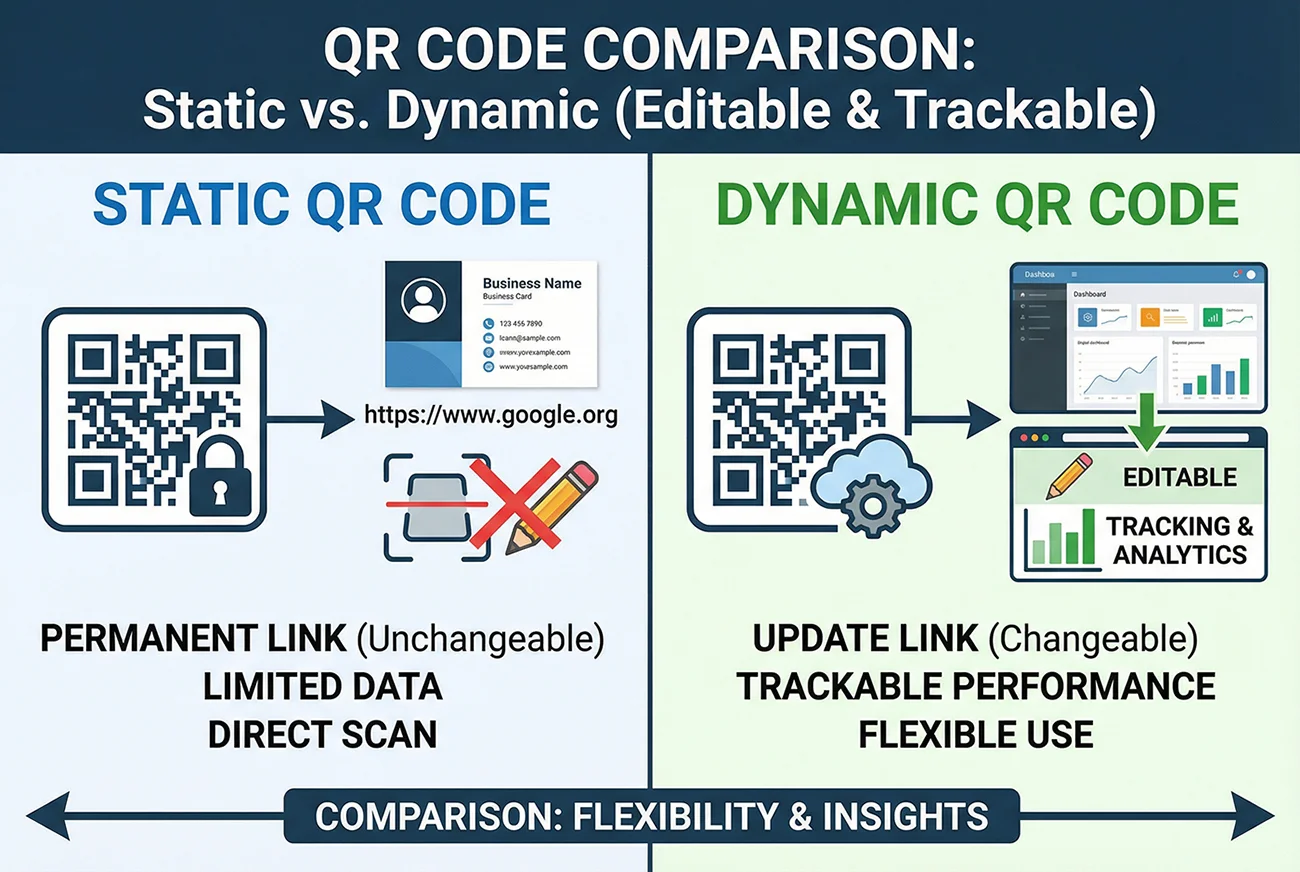
Static QR codes encode the destination URL directly into the pattern of the code itself. Once you create it, that's it. The link is baked in. If you print 1,000 business cards with a static QR code pointing to the wrong page, you're reprinting 1,000 business cards.
Static codes are fine for simple, permanent uses — like linking to a Google Maps location that will never change, or encoding a WiFi password.
Dynamic QR codes work differently. Instead of encoding your final destination directly, the code points to a short redirect URL. That redirect is managed through your QR code dashboard. This means you can change where the code sends people after it's already been printed.
Dynamic codes also give you scan tracking: how many people scanned the code, when they scanned it, what device they used, and where they were. If you're using QR codes for any kind of marketing, print campaign, or business operation, this data is essential.
Here's a simple way to decide:
Use static if the link will absolutely never change and you don't need scan data. WiFi passwords, permanent map locations, and one-time personal use are good candidates.
Use dynamic for everything else. Business cards, flyers, packaging, menus, event materials, posters, signage — anything where you might want to update the destination or understand how many people are actually scanning. For a deeper look at why dynamic codes matter, check out Editable QR Codes After Printing.
Step 3: Generate your QR code
Now for the hands-on part. Here's how the process works on QR Code Better:
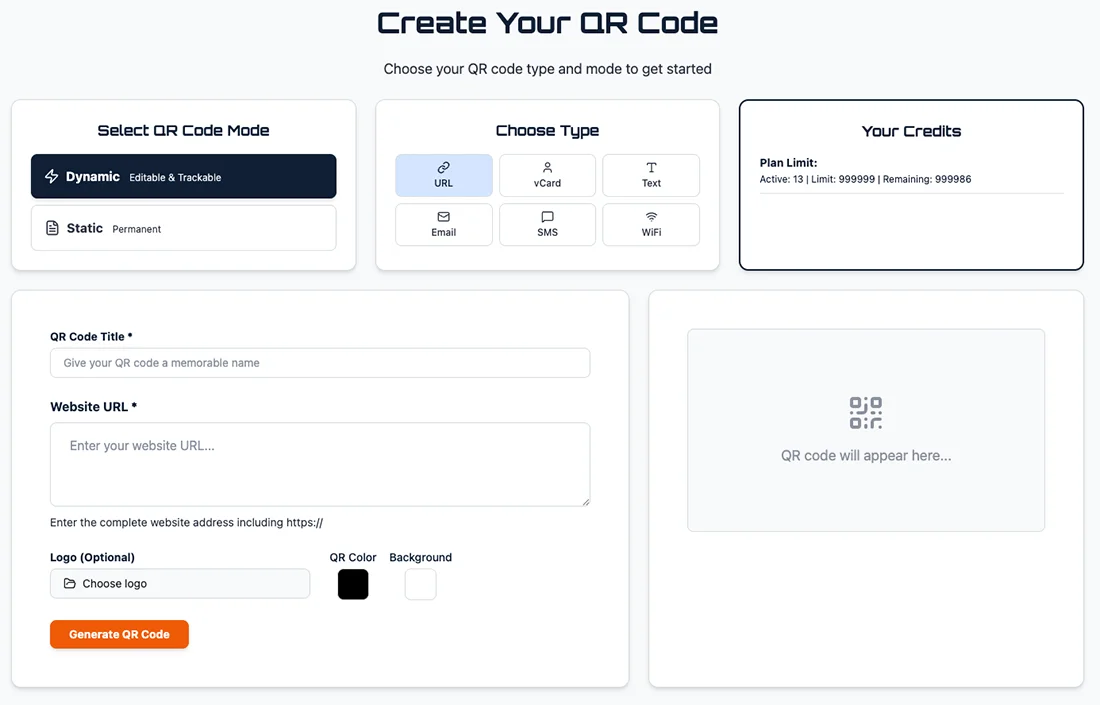
Select your mode — Choose "Dynamic" (editable and trackable) or "Static" (permanent). If you're unsure, go with Dynamic. You can always create a static code later, but you can't upgrade a static code to dynamic after the fact.
Choose your type — Pick from URL, vCard, Text, Email, SMS, or WiFi depending on what action you want the scan to trigger.
Fill in your details — For a URL code, enter the full web address including https://. Give your QR code a title so you can find it easily in your dashboard later (especially important if you end up managing dozens of codes).
Customize the look — You can change the QR code color and background color to match your branding. You can also upload a logo to place in the center of the code. A word of caution here: keep the contrast high. Dark foreground on light background scans best. If you go too wild with pastel-on-pastel or dark-on-dark, the code may not scan reliably. More on that in our troubleshooting guide.
Generate — Click the button and your QR code appears in the preview. That's it — your code exists.
Step 4: Download the right file format
This is where a lot of people quietly sabotage their own QR code without realizing it.
The QR code on your screen looks great. But how you download it determines whether it will actually look great in print, on a poster, on a business card, or on a banner.
PNG — The standard choice for most uses. Works for digital (websites, emails, social media) and prints well at the size you download it. If you're putting a QR code on a flyer, brochure, or small sign, PNG is your go-to.
SVG — A vector format that scales to any size without losing quality. If you need to put your QR code on a large banner, billboard, vehicle wrap, or anything where it needs to be printed much larger than it was generated, SVG is essential. It never gets blurry no matter how big you scale it.
What to avoid: Do not screenshot your QR code. Do not copy-paste it from an email preview. Do not download it as a JPG and compress it. These shortcuts introduce blur and compression artifacts that can make the code unscannable — especially in print. Always use the actual download button from your QR code generator.
For print projects specifically, exporting as PDF from your design tool (after placing the PNG or SVG) gives you the cleanest results at the print shop.
Step 5: Test before you print (or publish)
This takes 30 seconds and can save you hundreds of dollars in reprints.
Before you finalize any design that includes a QR code, do this quick test:
Scan with an iPhone camera. Just open the camera app and point it at the code. It should recognize the QR code and show a link banner within a second.
Scan with an Android camera. Some Android phones use Google Lens, others have a built-in QR scanner. Either way, test on a second device to make sure it works across platforms.
Scan from a realistic distance. If the code is going on a poster, don't test it by holding your phone 3 inches away. Step back to the distance a real person would scan from — usually 2 to 6 feet for wall signage.
Check the destination. After scanning, make sure the page that loads is correct, loads quickly on mobile, and looks good on a phone screen. A QR code that scans perfectly but sends people to a slow, broken, or desktop-only page is still a failed campaign.
If anything feels slow, inconsistent, or fails on either phone, fix it now. Not after the print run.
Step 6: Place it in your design
You've got a working, tested QR code file. Now it needs to go into your actual design — the flyer, menu, business card, poster, packaging, or digital asset.
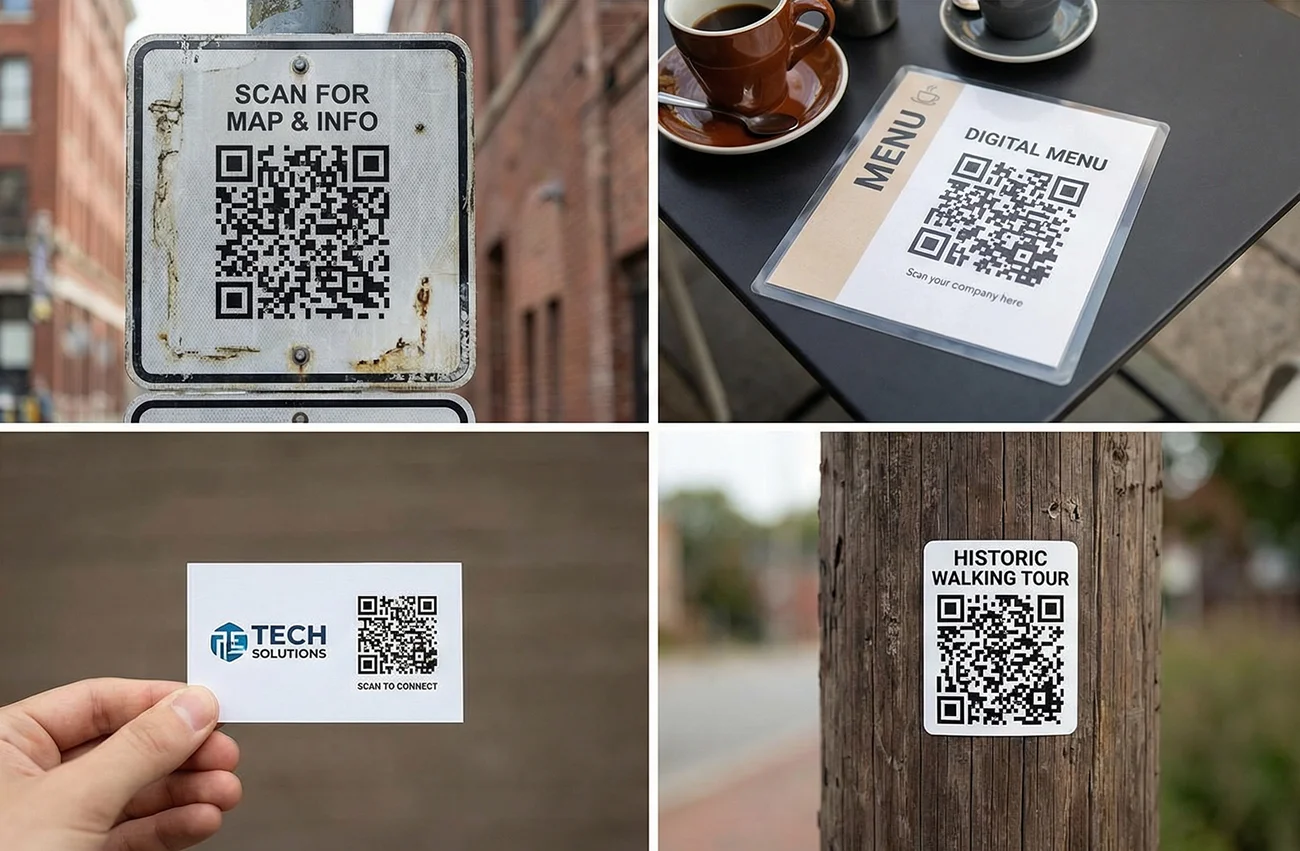
There are a few placement rules that directly affect whether people will actually scan your code:
Size matters. The general rule is that a QR code should be about 1/10th of the expected scan distance. For a poster someone scans from 4 feet away, the code should be roughly 5 inches across. For a business card scanned from a foot away, 1 inch is the minimum. Too small and phone cameras can't resolve the pattern.
Give it breathing room. The blank space around a QR code (called the "quiet zone") isn't wasted space — it's how scanners detect the edges of the code. Don't jam the QR code against text, photos, borders, or busy backgrounds. Leave a clean margin on all sides.
Keep the contrast. Dark code on a light background works best. If your design has a dark background, place the QR code inside a white box or card element. Avoid placing QR codes on top of photographs or gradients.
Add a call to action. A QR code sitting by itself doesn't tell people why they should scan it. Add a short line of text near the code: "Scan for menu," "Scan to save my contact," "Scan for 20% off," or whatever the value proposition is. People scan more when they know what they'll get.
Think about the surface. Glossy lamination, curved bottles, glass windows, and reflective packaging all create glare that can interfere with scanning. If you're printing on a shiny surface, increase the QR code size to compensate and consider matte finishes where possible.
Common mistakes that ruin QR codes (and how to avoid them)
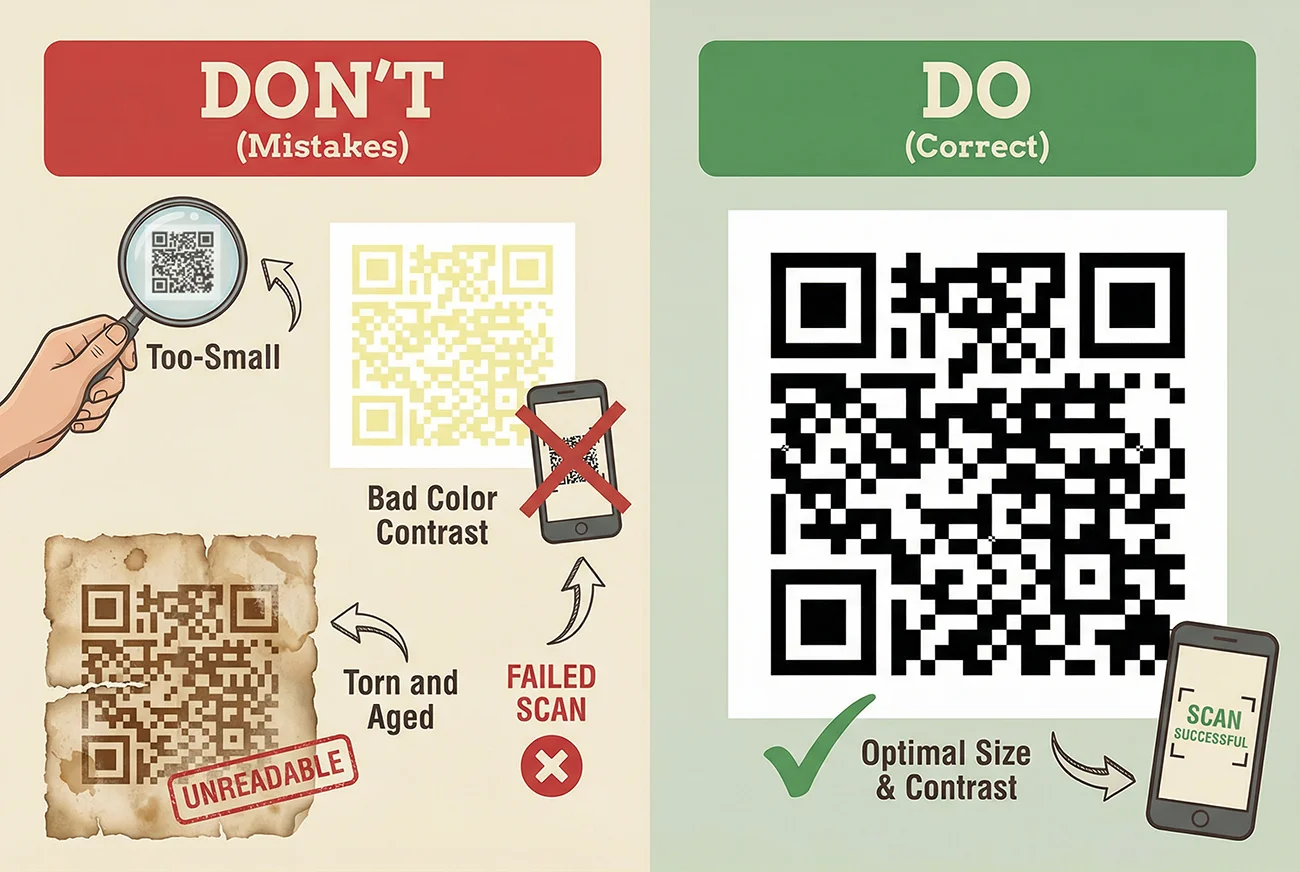
Even after following the steps above, there are a few traps that catch people off guard:
Using a static code for something that might change. If there's even a small chance the destination URL could change — a seasonal menu, an event page, a promotion — use a dynamic code. The flexibility is worth it, and it avoids the "we printed the wrong link" disaster.
Not tracking scans. If you're spending money on printed materials, you need to know whether people are actually scanning. Zero scans after a week of distribution is a red flag — it could mean the code doesn't work, the placement is wrong, or the call to action isn't compelling. Tracking turns guesswork into data. See our guide on how to track QR code scans for the full breakdown.
Overcomplicating the design. Logos in the center of a QR code can look professional, but oversized logos, heavy dot styling, or extreme color schemes reduce scan reliability. If you customize, test aggressively on multiple phones in different lighting conditions.
Forgetting mobile optimization. The person scanning your QR code is on a phone. If the page they land on isn't mobile-friendly, loads slowly, or requires pinching and zooming, you've lost them. The QR code did its job — the landing page didn't.
Sending people to a generic homepage. If your QR code is on a flyer for a specific promotion, don't send scanners to your website homepage and expect them to find the offer. Link directly to the relevant page: the product, the signup form, the coupon, the menu — the specific thing they scanned for.
What to do after your QR code is live
Creating the QR code is step one. Managing it over time is where dynamic codes really earn their value.
Monitor your scan data. Check your QR code analytics dashboard regularly. Look at total scans, scan trends over time, device types, and locations. This tells you which campaigns are working and which placements aren't pulling their weight.
Update destinations when needed. Running a seasonal promotion? Swap the URL behind your dynamic code instead of printing new materials. Changing your menu? Update the link. Moved to a new website? Redirect every QR code you've ever printed in 10 seconds from your dashboard.
Organize your codes. Once you have more than a handful of QR codes, naming and organization matter. Use clear, descriptive titles: "Spring 2026 Flyer - Homepage" is easier to find six months later than "QR Code 7."
Retire dead codes. If a campaign is over, a product is discontinued, or a page no longer exists, deactivate or update the QR code so scanners don't hit a dead end. A 404 page is a bad experience for anyone who bothered to pull out their phone and scan.
How to get started
- Create a free account on QR Code Better.
- Choose your QR code type (URL, vCard, WiFi, etc.).
- Select Dynamic mode so you can edit the destination and track scans.
- Customize colors and add a logo if you want.
- Download as PNG (or SVG for large-format printing).
- Test with at least two phones before printing.
- Place it in your design with a clear call to action and plenty of quiet zone.
That's it. From zero to a working, trackable QR code in under two minutes.
Start your free trial — create dynamic QR codes, track every scan, and update your links without reprinting.