How to Add a QR Code to Your Resume or Portfolio
Hiring managers spend an average of six to eight seconds on an initial resume scan. In that window, they're looking for relevance, clarity, and anything that makes you stand out from the stack. A QR code on your resume does something no bullet point can — it gives the reviewer instant, one-tap access to your portfolio, LinkedIn profile, work samples, or a personal website that tells your full story.
It's a small addition that creates a meaningful advantage. Instead of hoping someone types out a URL from your resume into their browser (they won't), you give them a scannable shortcut that takes two seconds. And if you use a dynamic QR code, you can track whether anyone actually scanned it — and update the destination anytime without reprinting your resume.
This guide covers exactly how to add a QR code to your resume or portfolio, what to link it to, where to place it, and how to avoid the mistakes that make it look gimmicky instead of professional.
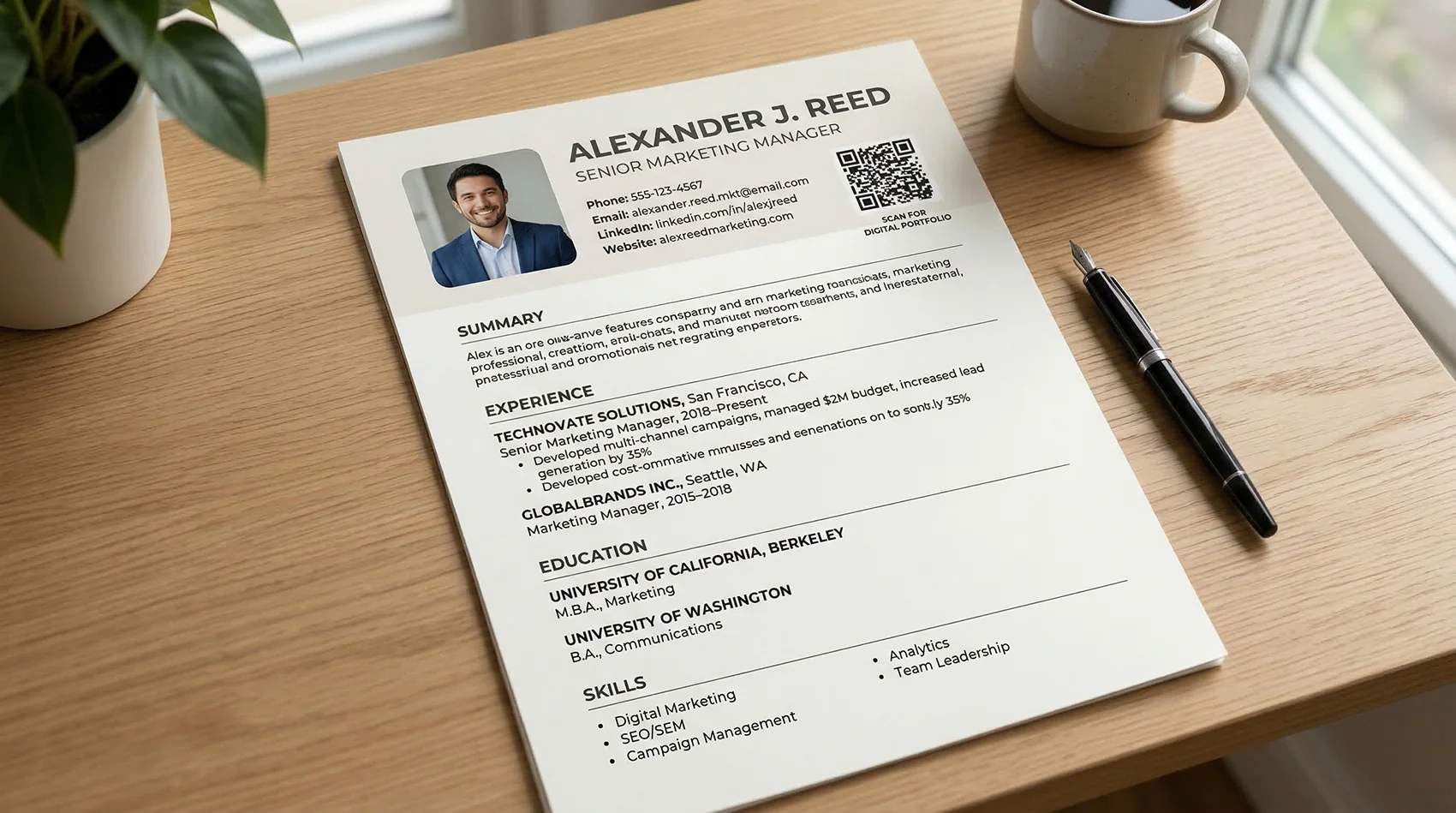
Why a QR code on your resume works
The core problem a resume QR code solves is simple: resumes are flat, static documents, but your professional story isn't. A one-page PDF can hold your work history, education, and skills — but it can't show your design portfolio, play a video of you presenting, demonstrate a live application you built, or display testimonials from clients.
A QR code bridges that gap. It turns a printed or PDF resume into a gateway to everything you can't fit on one page.
Hiring managers are already on their phones. Even when reviewing printed resumes at a career fair or on their desk, most recruiters have their phone within arm's reach. Scanning a QR code is faster and easier than typing a URL — and the barrier to checking out your work drops to nearly zero.
It signals tech awareness. For roles in marketing, design, development, sales, and most modern industries, a well-placed QR code says you understand how digital tools work and you know how to use them practically. It's a subtle but real differentiator, especially for entry-level and mid-career candidates competing against dozens of similar resumes.
It works in both print and digital. If you hand someone a printed resume at a career fair, they scan the code with their camera. If you email a PDF resume, the reviewer can scan the code right off their screen using their phone. Either way, they get to your destination in seconds.
You control the narrative. A resume lists facts. Your portfolio, personal site, or LinkedIn profile tells a story. The QR code lets you guide reviewers to the version of your professional story that's most complete and most compelling.
What to link your QR code to
The destination matters more than the QR code itself. A code that leads to a generic homepage or an outdated LinkedIn profile does more harm than good. Here are the best destinations depending on your field:
Your portfolio website. This is the strongest option for designers, developers, writers, photographers, videographers, architects, and anyone whose work is visual or demonstrable. A clean portfolio site with your best 5-10 projects, a brief bio, and contact information gives hiring managers exactly what they need to evaluate your work. Make sure the site is mobile-optimized — they'll be viewing it on a phone.
Your LinkedIn profile. If you don't have a portfolio site, a well-maintained LinkedIn profile is the next best option. It gives reviewers your full work history, recommendations, skills endorsements, and any content you've published. Make sure your LinkedIn is current and complete before pointing a QR code at it — an incomplete profile is worse than no link at all.
A personal landing page. A simple one-page site that consolidates your key links — portfolio, LinkedIn, GitHub, Dribbble, writing samples, YouTube channel — into one mobile-friendly page. This is especially useful if your work lives across multiple platforms and you want to give reviewers one central hub.
A video introduction. For sales roles, consulting positions, customer-facing jobs, or any role where communication skills matter, a 60-90 second video introduction can be powerful. Link the QR code to an unlisted YouTube video or a Vimeo page where you briefly introduce yourself and explain what you bring to the role. Keep it professional, concise, and well-lit.
A specific project or case study. If you're applying for a role where one particular project in your history is especially relevant, link directly to that project's case study or demo. This is more targeted than a general portfolio and shows you've thought about what this specific employer wants to see.
A vCard with your contact details. If your primary goal is making it easy for the hiring manager to save your contact info, a vCard QR code lets them scan and instantly add your name, phone, email, and website to their phone contacts. This works well on business cards and networking materials, though for resumes you'll usually get more value linking to a portfolio or profile. For the full vCard setup, see our guide on sharing contact info at networking events.
How to create the QR code (step by step)
The process takes about five minutes:
Step 1: Choose your destination. Decide what you're linking to — portfolio, LinkedIn, landing page, or video. Copy the exact URL. Test it on your phone first to make sure the page loads correctly on mobile.
Step 2: Create a dynamic QR code. Sign up for a free account on QR Code Better and select URL as your QR code type. Paste your destination URL and generate the code. Use dynamic mode — this lets you update the destination later without reprinting your resume, and gives you scan tracking so you know when someone actually looks at your work.
Step 3: Keep the design simple. For a resume, a standard black-on-white QR code is almost always the right choice. It's clean, professional, and scans reliably on any background. Avoid bright colors, complex patterns, or heavy customization — on a resume, the QR code should look intentional and understated, not flashy. If your resume uses a specific accent color (a dark blue or charcoal, for example), you can match the QR code to that color, but test it thoroughly.
Step 4: Download as PNG. PNG format works for both printed resumes and PDF versions. Download the highest resolution available. If you're sending your resume as a PDF, make sure the QR code is embedded at sufficient resolution — if it looks pixelated when you zoom in, it won't scan reliably.
Step 5: Test it. Print your resume and scan the QR code with at least two phones. Also test the QR code in the PDF version by scanning the screen with your phone. Both should work. If either fails, the code is too small, the resolution is too low, or the contrast isn't sufficient.

Where to place it on your resume
Placement is the difference between a QR code that looks professional and one that looks like you ran out of ideas for filling space. Here are the best options:
Header area, near your contact info. This is the most natural placement. Your name, phone number, email, and LinkedIn URL are already at the top of the resume — adding a small QR code next to or below this block is intuitive. Reviewers understand immediately that the code links to more information about you. This is the approach most career experts recommend.
Bottom of the page, right-aligned. If you don't want the QR code competing with your name and headline at the top, placing it in the lower-right corner works well. It's visible without being intrusive, and it gives reviewers something to scan after they've read through the document.
Next to a specific section. If the QR code links to something specific — a portfolio that supports your "Projects" section, or a video that supports your "Presentations" section — placing it adjacent to that section creates a clear connection. The reviewer sees the relevant experience and the QR code in the same visual area.
What to avoid. Don't center the QR code in the middle of the page. Don't make it the largest element on the resume. Don't place it over text or in the margins where it might get cut off when printed. And don't use more than one QR code on a resume — one is purposeful, two is cluttered.
Sizing and formatting
Getting the size right is critical. Too big and it dominates the page. Too small and it won't scan.
For printed resumes: A QR code between 0.75 inches and 1.25 inches square works well. This is large enough to scan reliably from a normal reading distance (about 12-18 inches) while being small enough to fit naturally into a resume layout. One inch square is the sweet spot for most designs.
For PDF resumes viewed on screen: The code needs to be at least 100 pixels wide to scan reliably when someone points their phone at a laptop or monitor screen. At standard resume dimensions (8.5" x 11" at 72-150 DPI), a one-inch code translates to 72-150 pixels — right at the lower limit. If your resume will primarily be viewed digitally, err on the larger side (1.25 inches) to ensure reliable scanning off screens.
Always include a label. Don't just drop a QR code on your resume with no explanation. A small text label below or next to the code tells the reviewer what they'll get: "Scan for Portfolio," "Scan for LinkedIn," "View My Work," or "Digital Portfolio." Keep it short — two to four words. Without a label, many people won't bother scanning because they don't know what it leads to.
Maintain quiet zone. QR codes need a small margin of white space around them (called the "quiet zone") to scan properly. Don't crowd the code right up against text, borders, or other design elements. A margin of at least 1/8 inch on all sides is the minimum — more is better.
For more details on sizing for different scan distances, see our QR code minimum size guide.
Dynamic vs. static: which to use on a resume
Use dynamic. Here's why:
You can update the destination. Applied to a design role and linked to your design portfolio? Next week you're applying to a marketing role and want to link to your campaign case studies instead. With a dynamic code, you swap the URL in your dashboard — the printed resume stays the same. With a static code, you'd need to generate a new QR code and reformat your resume.
You get scan tracking. Your QR Code Better dashboard shows you when someone scans the code on your resume. If you sent your resume to five companies and your QR code gets scanned three times in the next week, you know at least three people looked beyond the page. That's useful signal — especially if you can correlate the scan dates with your application timeline.
Your contact info might change. If you're job searching, there's a reasonable chance your phone number, email, or portfolio URL could change during the process. A dynamic code lets you update without touching the resume file.
The only scenario where static might be acceptable is a vCard code — where the contact data is encoded directly in the code for offline saving. But even then, dynamic gives you more flexibility. For the full comparison, see our guide on static vs dynamic QR codes.

Using QR codes on other job search materials
Your resume isn't the only place a QR code adds value during a job search. Here are other materials where the same approach works:
Business cards. If you have a personal business card for networking, a QR code with your vCard or portfolio link makes it easy for connections to save your info immediately. This is especially effective at career fairs, industry meetups, and conferences where you're exchanging cards with dozens of people. Our guide on sharing contact info at networking events covers this in detail.
Cover letters. If you submit printed cover letters, a QR code linking to your portfolio or a relevant project adds depth to the letter without making it longer. Place it near the bottom, after your closing paragraph.
Physical portfolio booklets. Designers, architects, and photographers who present physical portfolios can add QR codes next to individual projects linking to the full case study, a video walkthrough, or a live demo.
Conference presentations and posters. If you're presenting at an industry event, a QR code on your final slide linking to your contact info or portfolio turns audience members into connections. On an academic poster, a QR code linking to the full paper or your research page gives interested viewers a way to follow up.
Email signatures. During a job search, every email you send is a potential touchpoint. A QR code in your email signature linking to your portfolio gives every recipient a fast way to learn more about you. See our guide on adding a QR code to your email signature.
Common mistakes to avoid
Linking to an outdated or incomplete profile. This is the biggest risk. If your LinkedIn hasn't been updated in two years, or your portfolio still shows student work from 2019, the QR code hurts more than it helps. Before adding the code to your resume, visit the destination on your phone and ask yourself: if a hiring manager saw this right now, would it help or hurt my application?
Making the QR code too prominent. The QR code should complement your resume, not dominate it. If it's the first thing a reviewer notices — bigger than your name or taking up significant page real estate — it's too big. It should feel like a useful addition, not the main event.
Using a colorful or heavily branded QR code. On a resume, subtlety wins. A standard black code on white background (or dark gray matching your resume's text color) looks professional. A bright orange QR code with a logo in the center looks like you're trying too hard. Save the branded codes for marketing materials.
No label or call to action. A QR code without context is a mystery box that most people won't open. Always include a brief label: "Scan for Portfolio," "View My Work," or "Digital Resume." Two to four words is all you need.
Forgetting to test the PDF version. Your resume will likely be viewed on screen more often than in print. Scan the QR code from the PDF displayed on a laptop screen to make sure it works at that resolution and viewing angle. If it doesn't scan from the screen, increase the size slightly or ensure the PDF export maintains sufficient image resolution.
Using a static code when your situation is likely to change. Job searches are fluid. Portfolios get updated, you add new projects, you change the landing page you want to highlight. A dynamic code lets you adjust the destination for each application wave without touching the resume file itself.
Linking to a non-mobile-friendly page. The person scanning your QR code is on their phone. If your portfolio or landing page requires pinching and zooming, loads slowly, or shows a broken layout on mobile, you've lost the opportunity. Test your destination page on an actual phone before adding the QR code to your resume.
Industry-specific tips
Designers and creatives. Link to your best portfolio work. Curate it — don't dump everything. Five to eight strong projects presented well beats thirty mediocre ones. Make sure the portfolio itself demonstrates your design skills — the website or page you link to is itself a work sample.
Software developers. Link to your GitHub profile, a personal site with project demos, or a specific live project that's relevant to the role. If you've contributed to open source, a curated page showing your contributions can be compelling.
Writers and content creators. Link to a writing portfolio page, a Medium profile with your best articles, or a Google Drive folder with published clips. If you have bylines at recognizable publications, make sure those are front and center.
Sales and business development. Link to your LinkedIn profile (with recommendations visible) or a personal landing page with a brief video introduction. In sales, the ability to present yourself confidently on video is itself a relevant skill.
Recent graduates. Link to a personal landing page that consolidates your best work — class projects, internship deliverables, volunteer work, any freelance or side projects. New graduates often undersell themselves because their resume has limited work history. A QR code linking to a well-presented portfolio of projects can dramatically strengthen a thin resume.
Freelancers and consultants. Link to a personal site with case studies, client testimonials, and a clear description of services. The QR code on your resume doubles as a lead generation tool — every person who scans it sees your full offering.
Get started
Adding a QR code to your resume takes five minutes and costs nothing to try. Here's the quick version:
- Choose your destination — portfolio, LinkedIn, landing page, or video introduction.
- Make sure the destination is current, complete, and mobile-friendly.
- Create a free dynamic QR code on QR Code Better.
- Download as PNG and place it in your resume header or footer area.
- Add a short label: "Scan for Portfolio" or "View My Work."
- Size it at approximately 1 inch square with white space around it.
- Test by scanning the printed version and the PDF version with your phone.
One small square on your resume. Instant access to everything that makes you the right candidate.
Create your resume QR code now — free trial, no credit card required.