Why Your QR Code Won’t Scan (Complete Troubleshooting Guide)
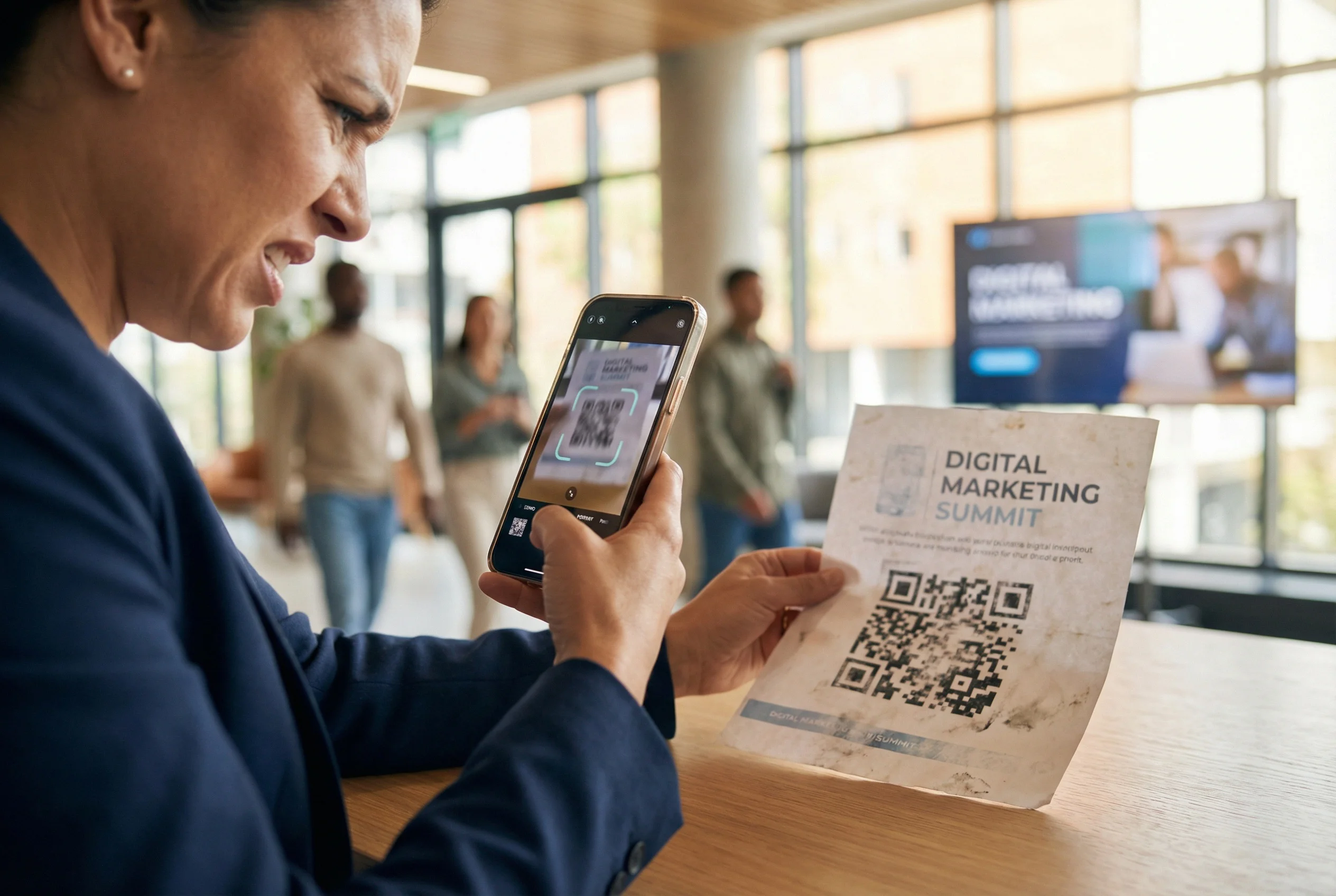
You printed 2,000 flyers. You taped them up. You handed them out. Someone finally scans the QR code… and nothing happens.
Or worse: it scans sometimes, but only on certain phones. Or only in bright light. Or only if you hold the camera at a weird angle like you’re trying to open a safe.
This is the silent killer of QR campaigns. You can have a great offer, a great landing page, and a great design — but if the code won’t scan instantly, the campaign is dead on arrival.
The good news: almost every QR scan failure has a boring, fixable cause. This guide walks you through the exact reasons QR codes fail and how to fix each one.
The 30-second test (before you debug anything)
Before you change a single thing, do this quick test:
- Scan the QR code using an iPhone camera.
- Scan it using an Android camera (or any second phone).
- Scan it from the distance a real person will scan it (not 4 inches away at your desk).
- Scan it in realistic lighting (bright indoor, dim indoor, outside shade).
If it scans instantly in all four scenarios, you’re fine. If it hesitates or fails even once, keep going — the issue will be one of the categories below.
Most QR codes fail for 7 reasons
When QR codes won’t scan, it’s almost always one of these:
- Too small for the scan distance
- Low contrast (pretty colors that cameras hate)
- Blurry / pixelated image (compression, resizing, screenshots)
- No quiet zone (not enough blank margin around the code)
- Glare / reflections / curved surfaces
- Over-designed (logos too big, dots, rounded modules, “art QR”)
- Bad destination (broken link, slow page, redirects, blocked content)
Now let’s fix them one by one.
1) Your QR code is too small (the scan distance rule)
People don’t scan QR codes from the distance you test at your computer. They scan from:
- 2–6 feet away on posters and signs
- arm’s length on flyers and brochures
- 6–12 inches on business cards and packaging
Rule of thumb: the QR code size should be about 1/10 of the scan distance.
- Scan distance 10 inches → QR code ~1 inch
- Scan distance 4 feet (48 inches) → QR code ~4.8 inches
- Scan distance 8 feet (96 inches) → QR code ~9.6 inches
If your QR code is tiny on a poster because “it looked cleaner,” you just traded aesthetics for scans.
Fix: increase the QR code size on the design — or regenerate it at a higher resolution and then place it at the correct size.
If you want a more exact guide, use your size chart / calculator page here: Minimum QR Code Size for Print & Screens.
2) Low contrast colors (the fastest way to break scanning)
Phones scan contrast, not branding.
Bad combinations:
- light gray on white
- pastel on pastel
- dark color on dark background
- “inverted” QR codes with weak contrast
Best practice:
- dark foreground (black or very dark color)
- light background (white or near-white)
- matte print when possible
Fix: switch the QR to black on white. If you must use brand colors, use them lightly and test like crazy.
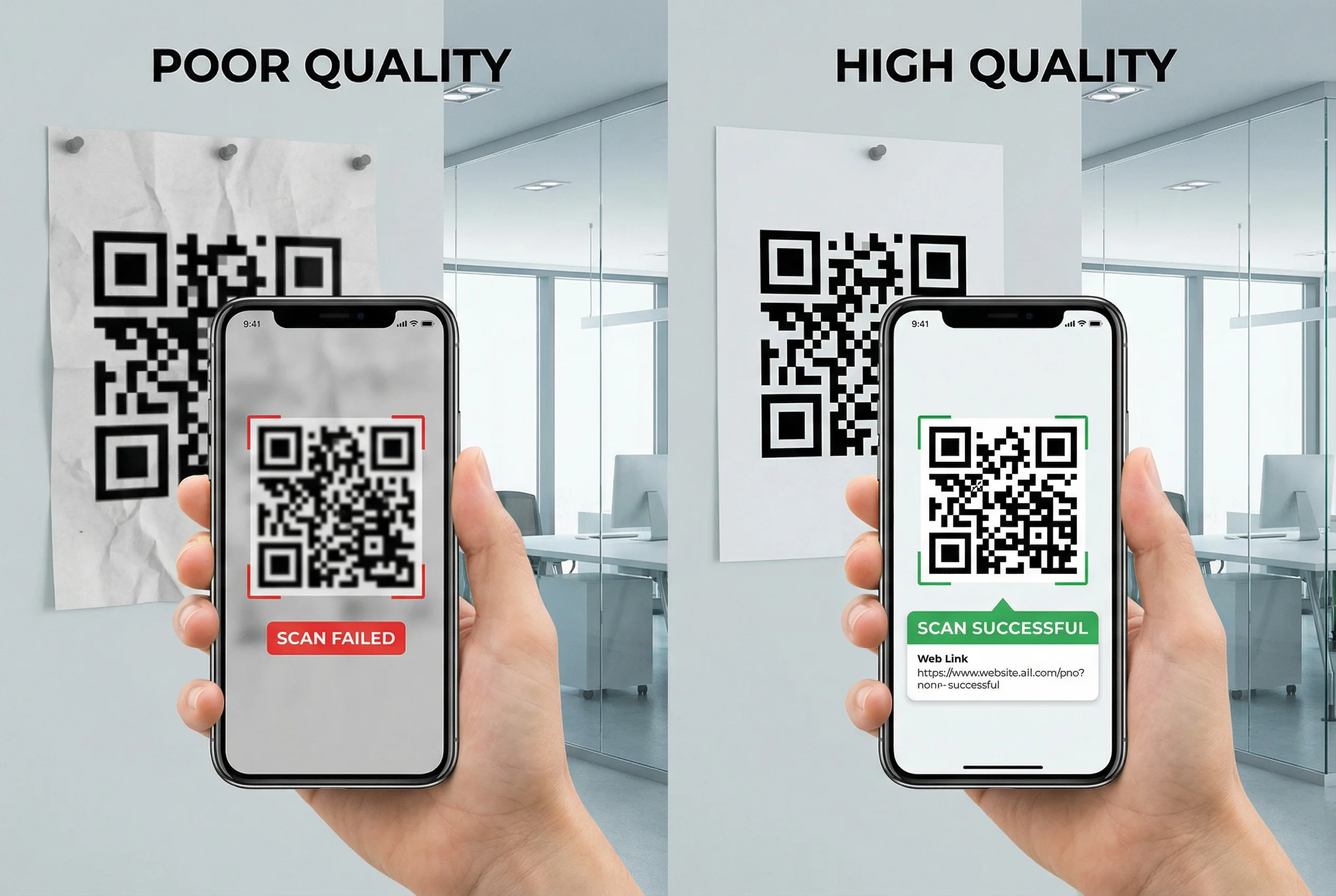
3) Blurry / pixelated QR code (screenshots and compression)
This is the #1 “it looked fine on my screen” failure.
Common ways QR codes get ruined:
- you screenshot the QR code instead of downloading it
- you resize it in Canva/Word and export as JPG
- you grabbed it from an email attachment preview
- you downloaded it from a social media post
- you used a tiny image and scaled it up
A QR code must have sharp edges. Blur kills the pattern.
Fix (safe workflow):
- Download the QR code as PNG (or SVG if you need to scale large).
- Do not screenshot it.
- Do not export as JPG.
- Do not scale up a small QR image.
If you’re sending to a print shop, PDF export is usually the cleanest: PDF to QR Code (and downloadable print formats).
4) No quiet zone (the “why won’t it detect the edges?” problem)
The blank margin around a QR code isn’t decoration. It’s part of how scanners detect boundaries.
If your QR code is jammed against:
- a border
- a photo
- a textured background
- text or icons
…scanners can’t reliably find the edges.
Fix: add a clean white margin around the QR code (quiet zone). As a rule, the quiet zone should be at least 4 modules wide. In normal design terms: “give it breathing room.”
5) Glare, reflections, or curved surfaces
Even a perfect QR code can fail if the real-world surface fights the camera.
Common offenders:
- glossy lamination
- reflective packaging
- plastic menu covers
- glass windows
- curved bottles / jars
Fix:
- use matte finishes when possible
- place QR codes on flat areas
- increase size to compensate
- avoid placing QR codes near harsh overhead lights
Also: if your QR is outdoors, assume sun glare will happen and size up.
6) Over-designed QR codes (logos, dots, “cute” styling)
Customization is fine — until you break the error correction budget.
QR codes can tolerate some damage, but:
- logos that are too large
- heavy rounding of modules
- tiny dots instead of squares
- busy “pattern” backgrounds
…all reduce scan reliability, especially in low light or on older phones.
Fix:
- reduce logo size
- increase error correction (if your generator supports it)
- stick to square modules for print campaigns
- increase contrast and quiet zone
If you want “brand style” QR codes, treat them like a luxury: test more than you think is necessary.
7) The QR code scans… but the result is broken
Sometimes the QR code is fine — the destination is the problem.
Here are the most common destination failures:
- 404 / dead link (page moved or deleted)
- slow page (mobile loads too slowly, user bounces)
- too many redirects (scan → redirect → redirect → blocked)
- blocked by browser/security (spammy short links, mixed content)
- PDF too large (takes forever on cellular)
Fix: open the scanned link on mobile data (not WiFi) and confirm it loads fast.
If you want to debug what’s actually inside a QR code (especially from screenshots or PDFs), your tool page helps: Free QR Code Scanner Online.
The “print-safe” QR workflow (do this and you’ll avoid 90% of issues)
If you only follow one section of this guide, follow this.
- Generate the code as PNG (or SVG for large scaling).
- Place it at the correct size for the scan distance.
- Keep a clean white quiet zone around it.
- Use high contrast (dark on light).
- Export your design at print quality (PDF is safest).
- Print a test sheet before you print 5,000 copies.
- Test with multiple phones in realistic lighting.
This sounds obvious. Almost nobody actually does all seven.
Static vs dynamic QR codes (and why it matters for fixing mistakes)
Here’s the harsh truth:
Static QR codes are permanent. If you print the wrong destination, you can’t fix it. You reprint.
Dynamic QR codes are editable. The printed code stays the same, but you can change where it goes.
This is the difference between:
- “We printed a typo. We’re screwed.”
- “We fixed it in 10 seconds.”
Dynamic QR codes also let you track scans — which is the other reason they’re worth using for anything printed.
If you want the full explanation (with the redirect layer concept), link to your page here: Editable QR Codes After Printing.
Tracking helps you catch scan failures early
A lot of people don’t realize their QR code is failing until it’s too late.
If you have scan tracking enabled, you’ll notice problems fast:
- you printed 2,000 flyers and got 0 scans (that’s a red flag)
- you got scans in one location but not another (maybe lighting or placement)
- iPhone scans work but Android scans don’t (often contrast/size/resolution)
Tracking isn’t just “nice data.” It’s a smoke alarm.
That’s why tracking pairs naturally with print marketing: QR Codes for Marketing Campaigns and QR Code Analytics.

Quick troubleshooting checklist (print this)
If someone tells you “it won’t scan,” run this checklist in order:
- Check size: is it large enough for the scan distance?
- Check contrast: dark on light, no fancy low-contrast palette.
- Check blur: zoom in — are edges sharp or fuzzy?
- Check quiet zone: is there clean margin around the code?
- Check glare: shiny surface, reflections, curved placement.
- Check customization: logo too big, dots/rounding too extreme.
- Check destination: does the page load fast on mobile data?
Most issues get solved by steps 1–3.
Real numbers: what “good scanning” feels like
A working QR code feels boring.
It should scan:
- in under 1 second
- without hunting for the right angle
- without needing perfect lighting
- on both iPhone and Android
If your QR code requires effort, most people will quit. QR codes only work when they’re frictionless.
How to get started (and avoid reprinting mistakes)
- Create a free account on QR Code Better
- Create a dynamic QR code (so you can fix mistakes later)
- Download as PNG (or SVG if you’ll scale large)
- Add it to your design with a clean quiet zone
- Print one test sheet and scan it with 2 phones
If you’re going to print anything at scale — menus, flyers, packaging, signs — dynamic QR codes are the insurance policy.
Start your free trial — create dynamic QR codes, track scans, and update destinations without reprinting.