How to Make a QR Code in 4 Easy Steps (2026 Guide)
Creating a QR code takes less than 2 minutes. Choose what you want to link to, enter your data, customize it (optional), and download. No design skills or technical knowledge required.
No credit card required • 5 dynamic QR codes included free • Takes 2 minutes
The Easiest Way to Make a QR Code
Follow these 4 simple steps and you'll have a working QR code in under 2 minutes
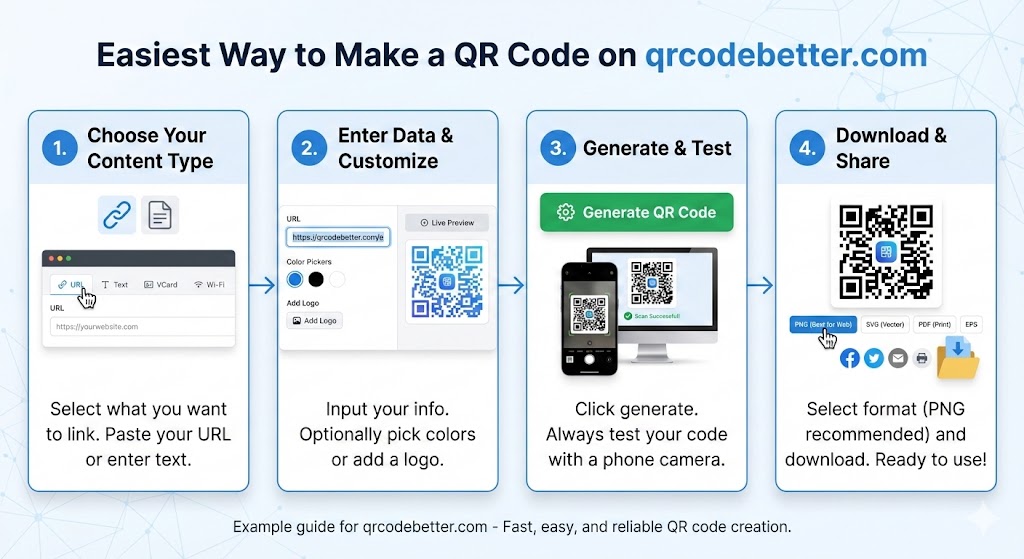
Choose Your Content Type
Select what you want your QR code to link to. QR Code Better supports:
- • URL — Link to any website or landing page
- • vCard — Digital business card with contact info
- • WiFi — Share network credentials instantly
- • Text, Email, SMS — And more
Enter Your Data & Customize
Input your information — paste a URL, enter contact details, or type your WiFi password. Then customize (optional):
- • Brand Colors — Match your company palette
- • Add Logo — Place your logo in the center
- • Live Preview — See changes in real-time
Generate & Test Your QR Code
Click the "Generate QR Code" button and your code appears instantly. Critical step:
⚠️ Always Test Before Using
Point your phone camera at the QR code on your screen. Make sure it scans correctly and goes to the right destination. This saves you from printing thousands of broken codes.
Download & Share
Select your preferred format and download:
- • PNG — Best for most uses (recommended)
- • SVG — Vector format, scales to any size
- • PDF — Ready to send to printers
- • EPS — For professional design software
This Is What You'll See
Clean interface, instant preview, simple controls
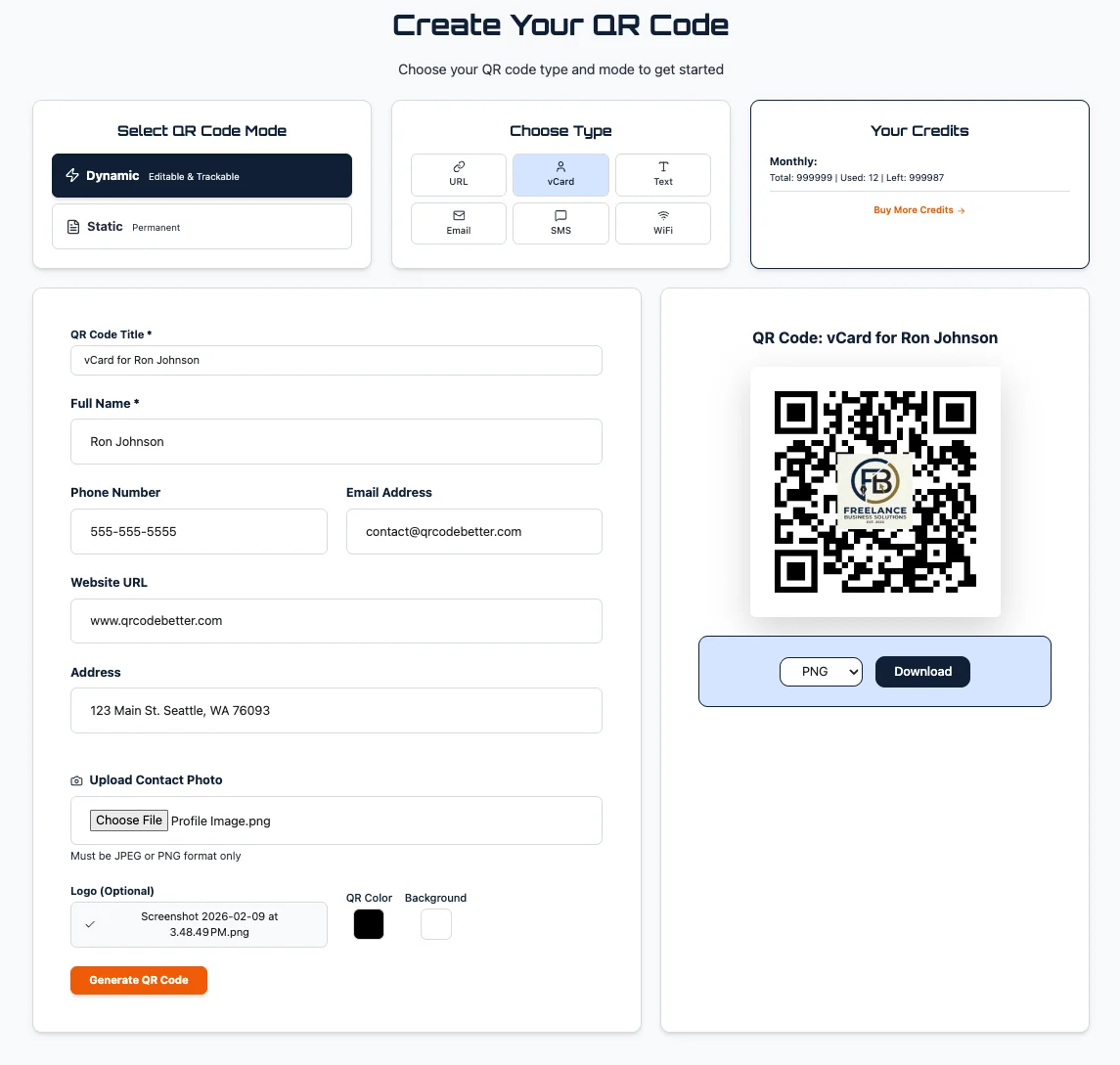
Real screenshot from QR Code Better — this is the actual interface you'll use
Static vs Dynamic: Which Should You Choose?
This is the most important decision when making a QR code
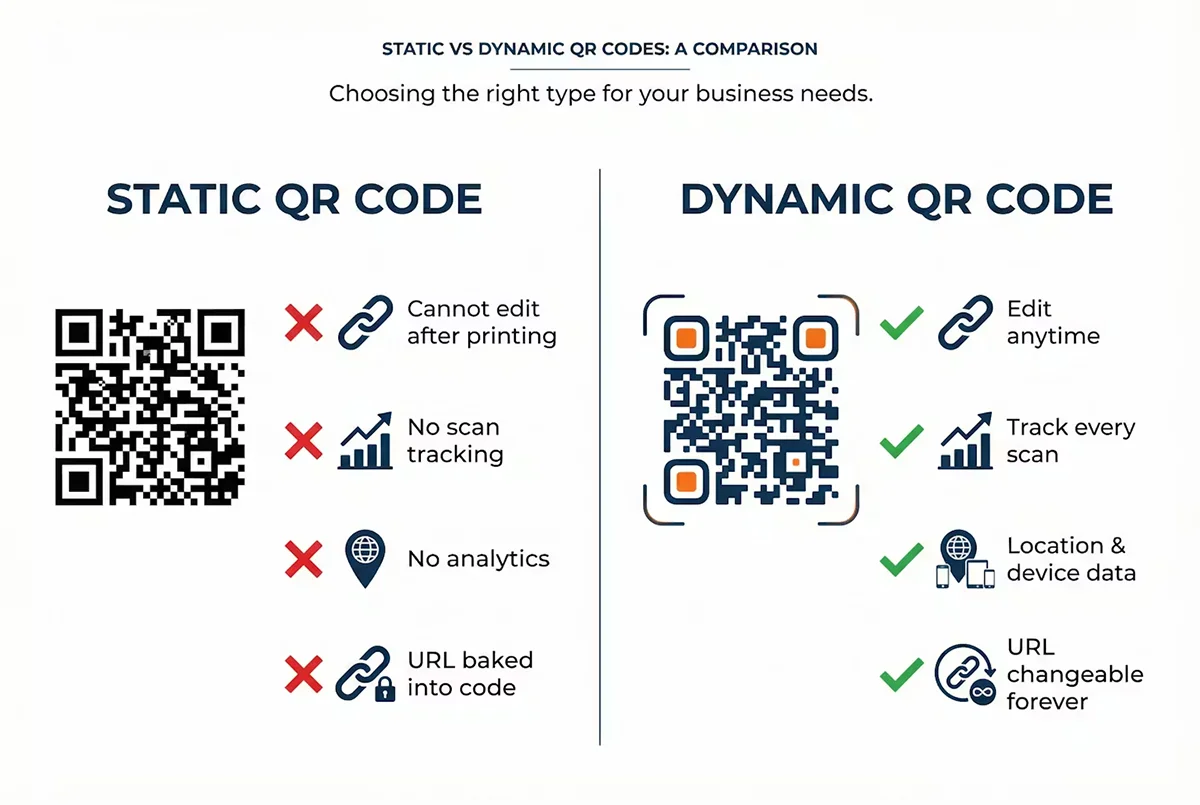
Our Recommendation: Always Use Dynamic
Unless you need an ultra-simple code for a one-time personal use, dynamic QR codes are worth it. Here's why: you print 5,000 flyers with a QR code. Two days later you realize the URL has a typo. With a static QR code, you throw away 5,000 flyers and reprint. With a dynamic QR code, you log in and change the destination in 10 seconds.
Use Static QR Codes For:
- • Personal use (sharing your WiFi with a guest)
- • One-time events where tracking doesn't matter
- • When you absolutely know the URL will never change
Use Dynamic QR Codes For:
- • Business cards (jobs change, websites update)
- • Marketing materials (track ROI, measure engagement)
- • Printed materials (flyers, posters, signage)
- • Anything permanent or expensive to reprint
What Type of QR Code Should I Make?
Choose based on what action you want people to take
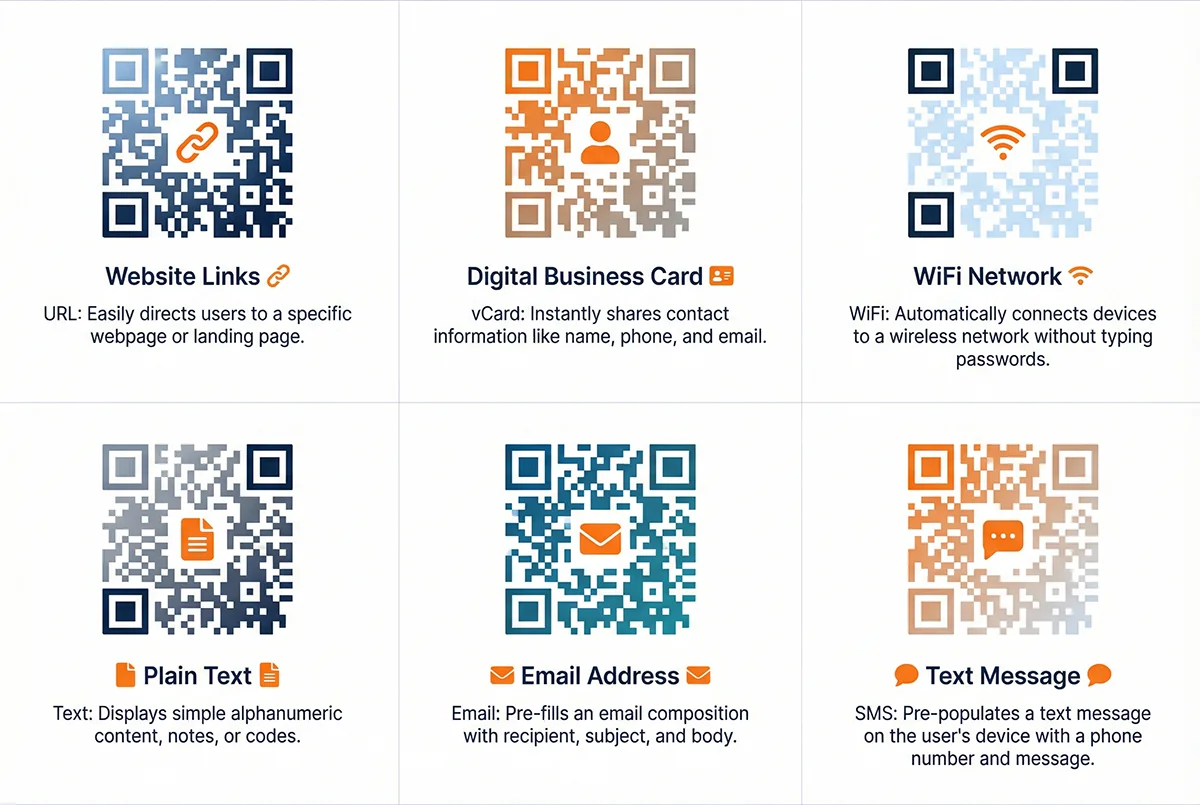
URL (Website Link)
The most common type. Links to any webpage, landing page, or online resource.
Best for: Marketing campaigns, product pages, event registration, menus
vCard (Digital Business Card)
Creates a contact card that saves directly to someone's phone with one scan.
Best for: Business cards, email signatures, conference badges, networking
WiFi Network
Lets people join your WiFi network instantly without typing the password.
Best for: Coffee shops, offices, Airbnbs, events, guest networks
Plain Text
Displays a message or instructions when scanned. No link required.
Best for: Instructions, serial numbers, product info, disclaimers
Opens a pre-filled email draft to a specific address with optional subject and body.
Best for: Customer support, feedback forms, contact requests
SMS (Text Message)
Opens a pre-filled text message to a specific phone number.
Best for: Opt-in campaigns, contests, event check-ins, quick responses
Make Your QR Code Match Your Brand
Customization is optional, but it makes your QR codes look more professional
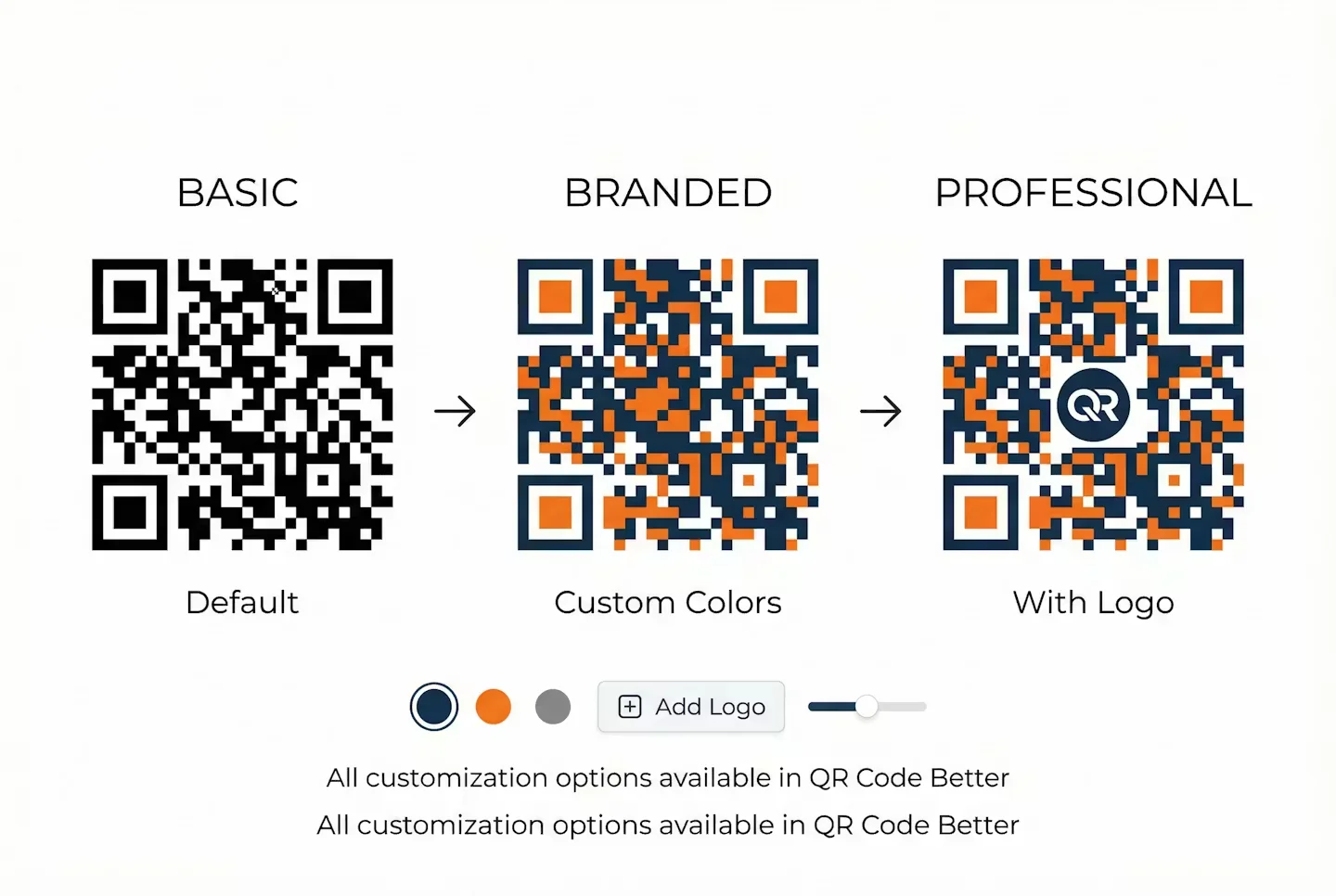
Custom Colors
Change the QR code foreground and background colors to match your brand palette. Just make sure there's enough contrast for cameras to scan it.
Add Your Logo
Upload your company logo and place it in the center of the QR code. The system automatically leaves enough error correction to keep the code scannable.
Live Preview
See your customizations in real-time as you make changes. No guessing — you see exactly what your final QR code will look like.
Important: Always Test Customized QR Codes
When you add colors or logos, there's a chance the QR code becomes harder to scan. Always test with your phone camera before printing. If it doesn't scan immediately, reduce customization (simpler logo, higher contrast colors) until it works reliably.
QR Code Best Practices
Follow these rules to avoid common mistakes
✓ Do This
Test before printing
Scan with multiple phones (iPhone and Android) to make sure it works
Leave white space around the QR code
The "quiet zone" — blank border around the code — helps cameras detect it
Use high contrast
Dark QR code on light background works best. Avoid light-on-dark unless you test extensively
Include a call-to-action
Add text like "Scan for menu" or "Scan to save contact" so people know what to expect
Use PNG or SVG for print
These formats scale without losing quality, unlike JPG
✗ Don't Do This
Don't make it too small
Minimum 2cm × 2cm (0.8" × 0.8") for close-range scanning. Bigger is better.
Don't use low contrast colors
Pastel QR codes look nice but often don't scan. Test heavily if using light colors.
Don't print on wrinkled or curved surfaces
QR codes work best on flat surfaces. Curves distort the pattern.
Don't use overly large logos
Logos should cover no more than 30% of the QR code or they block too much data
Don't skip the mobile-friendly destination
Your QR code will be scanned on phones, so make sure the destination page works on mobile
Common Questions About Making QR Codes
How do I make a QR code for free?
Visit QR Code Better, choose your content type (URL, vCard, WiFi, etc.), enter your data, and click generate. You can create up to 5 dynamic QR codes free with our 14-day trial — no credit card required.
What's the difference between static and dynamic QR codes?
Static QR codes have the URL permanently encoded in the pattern and can never be changed or tracked. Dynamic QR codes use a short redirect URL, so you can change the destination anytime and track every scan with location and device data.
Can I customize my QR code with colors and a logo?
Yes. QR Code Better lets you customize the foreground and background colors and add your logo to the center of the QR code. Just make sure there's enough contrast for scanners to read it, and always test before printing.
Do I need design skills to make a QR code?
No. QR Code Better handles all the technical work. Just paste your URL or enter your data, optionally pick colors, and click generate. The system automatically creates a scannable QR code.
What types of QR codes can I create?
You can create QR codes for: website URLs, vCard digital business cards, WiFi network credentials, plain text messages, email addresses, and SMS text messages. Each type is optimized for its specific use case.
How small can I make a QR code?
For close-range scanning (like on a business card or flyer someone holds), the minimum is about 2cm × 2cm (0.8" × 0.8"). For scanning from a distance, bigger is always better. See our QR code size guide for detailed recommendations.
Can I edit my QR code after printing?
Only if you created a dynamic QR code. Static QR codes are permanent and cannot be changed. Dynamic QR codes can be edited unlimited times — change the destination URL, update contact information, or redirect to a different page anytime.
How do I track scans on my QR code?
Dynamic QR codes include built-in analytics. Every scan records the timestamp, location (city/country), device type, and browser. You can view all this data in your dashboard and export it to CSV. Learn more about QR code tracking.
Ready to Make Your First QR Code?
No credit card required. Create up to 5 dynamic QR codes free. Takes less than 2 minutes from start to download.