vCard QR Code Generator
One scan. Contact saved.
Stop losing connections to forgotten business cards. Create a vCard QR code that saves your name, phone, email, company, website, and photo directly to someone's phone — with a single scan.
14-day free trial • No credit card required • Includes contact photo support

The Business Card Problem
People collect cards but never manually type the info into their phone
Cards get lost, thrown away, or buried in a drawer
Phone number or email changes? Your printed cards are now wrong
No way to include your photo, website, or full address on a small card
Typos when people manually enter your info mean lost connections
No idea if anyone actually saved your contact after the event
How It Works: Create → Scan → Saved
Three steps from setup to someone having your full contact details in their phone.
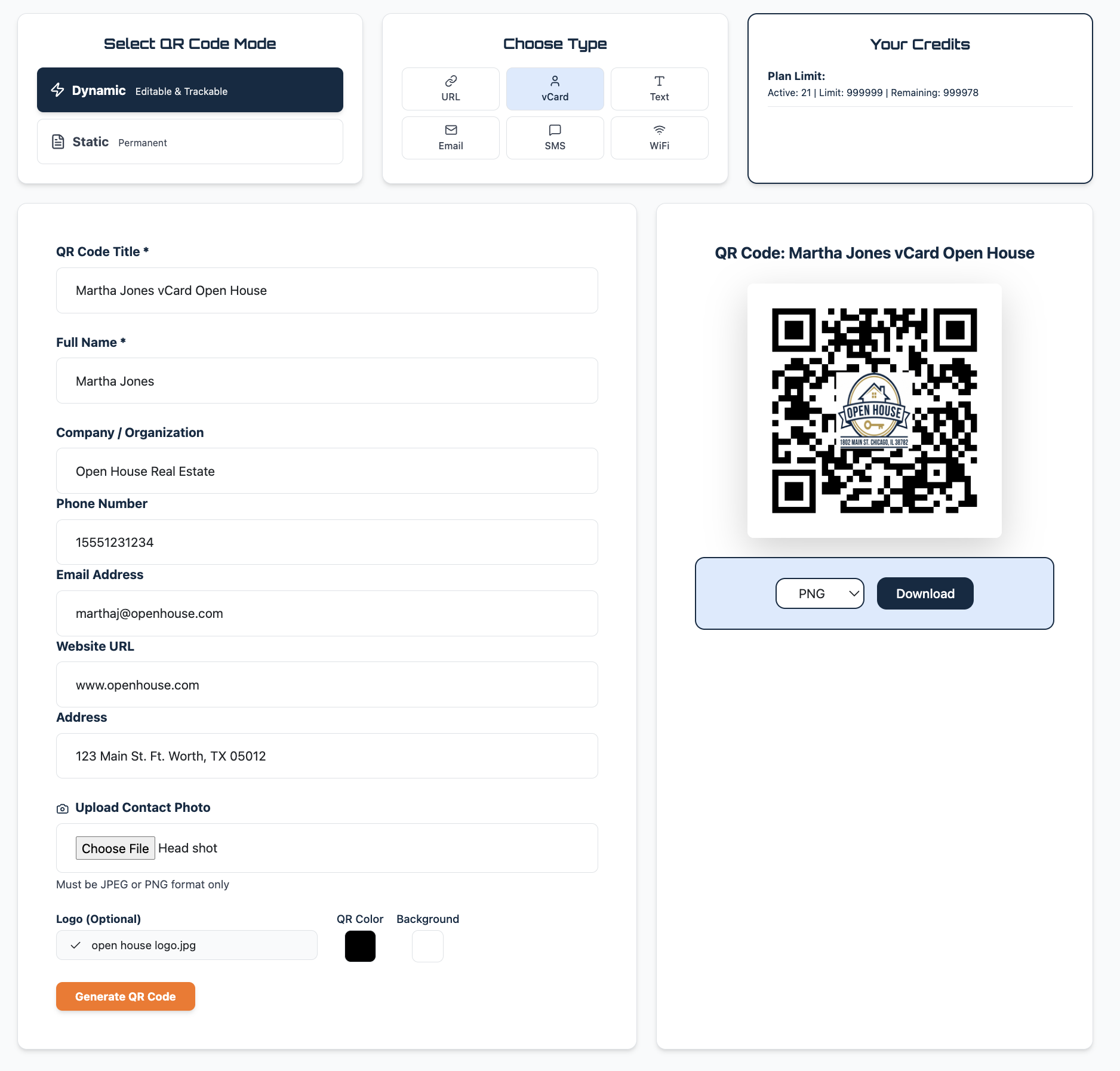
Create your vCard QR code
Enter your contact details — name, company, phone, email, website, address — and optionally upload a headshot. Choose your QR code colors, add your business logo, and generate.
Full Name, Company, Phone, Email, Website, Address
Upload a contact photo (headshot) — appears when contact is saved
Add your business logo to the center of the QR code
Custom colors to match your branding
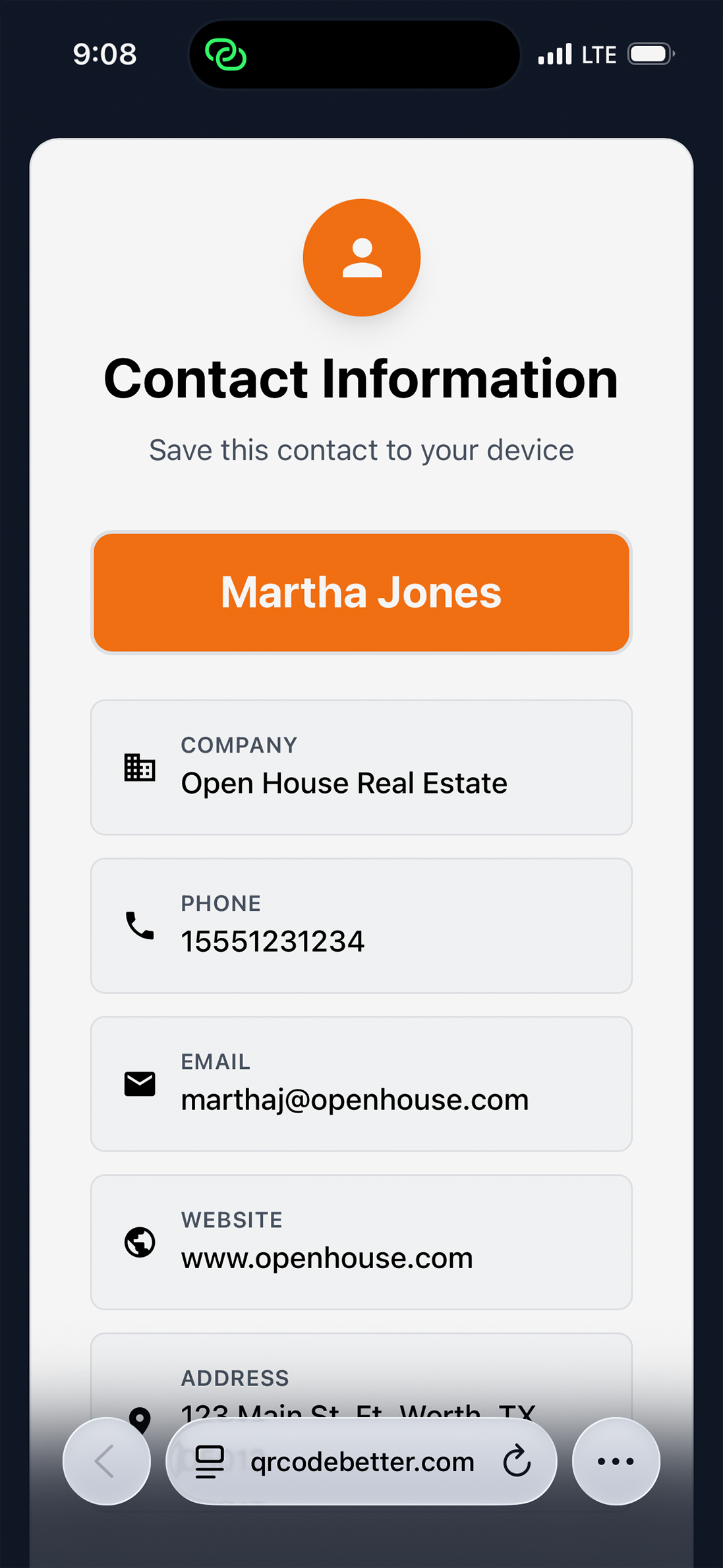
They scan and see your contact card
When someone scans your QR code, they see a clean contact card with all your details displayed clearly. One tap on "Save to Contacts" and your information is in their phone — no typing, no errors.
Works on every iPhone and Android — no app needed
Company name displayed prominently
One-tap save — no manual data entry
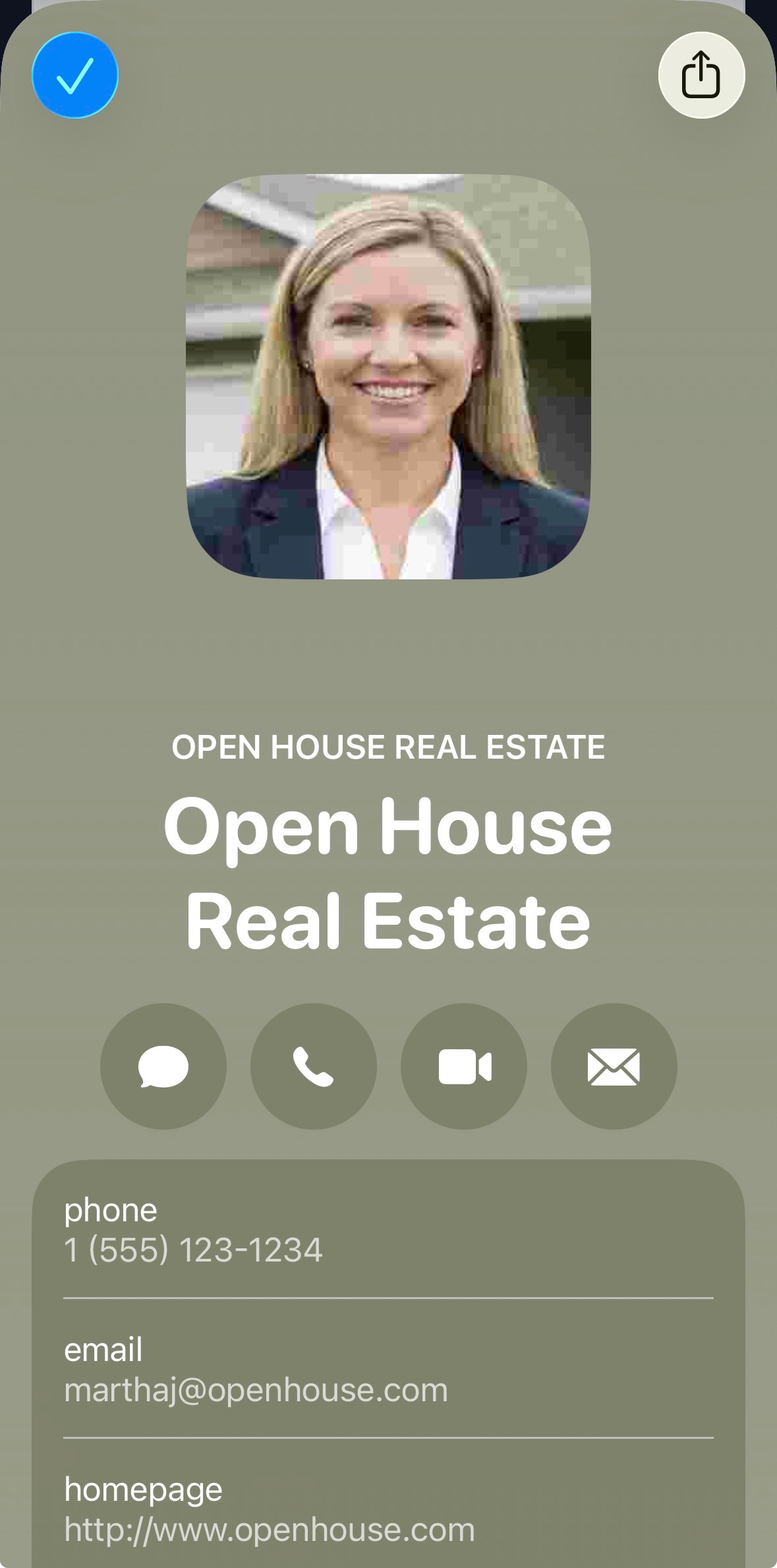
Your contact is saved — with your photo
Your full contact details land in their phone's address book — complete with your headshot, company name, and all your info. When you call or text, they see your face and name. No more "Unknown" callers.
Photo appears in their contacts and caller ID
Company name shows above your name — no more "UNKNOWN"
All details saved accurately — zero typos
What You Can Include in a vCard QR Code
Full Name
First and last name — saved exactly as you enter it
Company
Organization name — appears above your name in contacts
Phone Number
Mobile, office, or any number — tap to call directly
Email Address
Tap to email — no more spelling it out letter by letter
Website URL
Your website, portfolio, or LinkedIn — one tap to visit
Address
Office or business address — tap to open in Maps
Contact Photo
Your headshot — shows in contacts and caller ID
Custom Logo
Your business logo in the center of the QR code
Who Uses vCard QR Codes?
Sales Teams & Consultants
Hand someone your card at a meeting and they save your contact before you leave the room. No follow-up email needed to share your info.
Real Estate Agents
Put your vCard QR code on signs, flyers, and open house materials. Potential buyers save your contact at the moment of highest interest.
Freelancers & Contractors
Add it to your business card, invoice, or proposal. Clients save your contact with your company name and photo — you look professional and stay top of mind.
Job Seekers & Networkers
Add a vCard QR code to your resume, portfolio, or conference badge. Make it effortless for hiring managers and new connections to save your info.
Medical & Legal Professionals
Patients and clients save your contact from a card in the waiting room or on your letterhead. They always have your number when they need it.
Conference Speakers & Authors
Put your QR code on your last slide. Everyone in the audience saves your contact without scrambling for a pen. Follow-ups happen naturally.
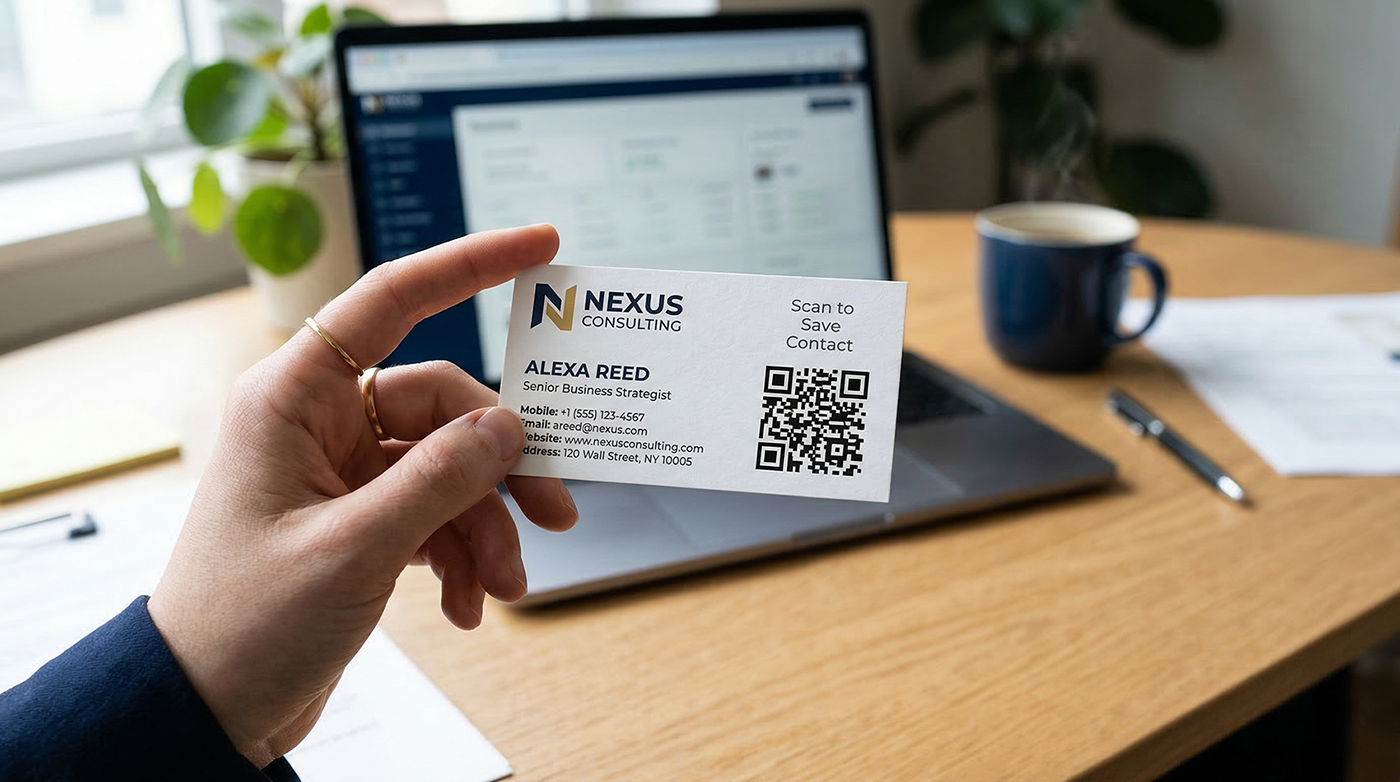
Add It to Your Business Card
Print your vCard QR code on the back of your business card — or next to your contact info on the front. When someone scans it, every detail is saved perfectly. No typing, no typos, no lost cards.
With a dynamic vCard QR code, you can update your contact details after the cards are printed. Changed your phone number? Updated your email? Just edit the vCard in your dashboard — the printed QR code stays the same.
Create Your vCard QR CodeDynamic vCard = Update Without Reprinting
A dynamic vCard QR code uses a redirect layer — so you can change your contact details anytime from your dashboard. New phone number? New company? Updated email? Edit it online. The printed QR code on your business cards stays the same.
Dynamic codes also give you scan tracking — see how many people saved your contact, when they scanned, and where. Perfect for measuring networking ROI at events and conferences.
Dynamic vCard Advantages
Update name, phone, email, company anytime — no reprint
Track how many people saved your contact
Include a contact photo (headshot) — shows in caller ID
Simpler QR code pattern — scans more reliably at small sizes
One QR code for all your cards, resumes, and materials
Make Every Introduction Count
Create your vCard QR code in under 60 seconds. Your contact info, saved perfectly, every time.
No credit card required • Cancel anytime
Common Questions
What is a vCard QR code?
A vCard QR code stores your contact information — name, company, phone, email, website, address, and photo — in a scannable code. When someone scans it, their phone offers to save your contact instantly with all details filled in.
Can I include my photo in the vCard?
Yes. Upload a headshot when creating your vCard QR code. The photo is embedded in the contact data and appears in the recipient's phone contacts and caller ID when you call or text them.
Can I update my contact info after printing?
Yes — if you create a dynamic vCard QR code. You can change your name, phone, email, company, or any other detail from your dashboard anytime. The printed QR code stays the same.
What phones can scan vCard QR codes?
Every modern iPhone and Android device. iPhones use the built-in Camera app. Android devices use the Camera app or Google Lens. No special app is needed.
Where should I put my vCard QR code?
Business cards are the most common placement. You can also add it to your email signature, resume, conference badge, letterhead, invoices, or the last slide of a presentation — anywhere you want people to save your contact.
Does the vCard QR code expire?
No. Your vCard QR code works as long as your account is active. Dynamic codes continue to work even if you update the contact details behind them.