WiFi QR Code Generator
Guests scan. They're connected.
Stop spelling out passwords. Create a WiFi QR code that lets customers, guests, and visitors connect to your network instantly — one scan, no typing.
14-day free trial • No credit card required • Create in under 60 seconds
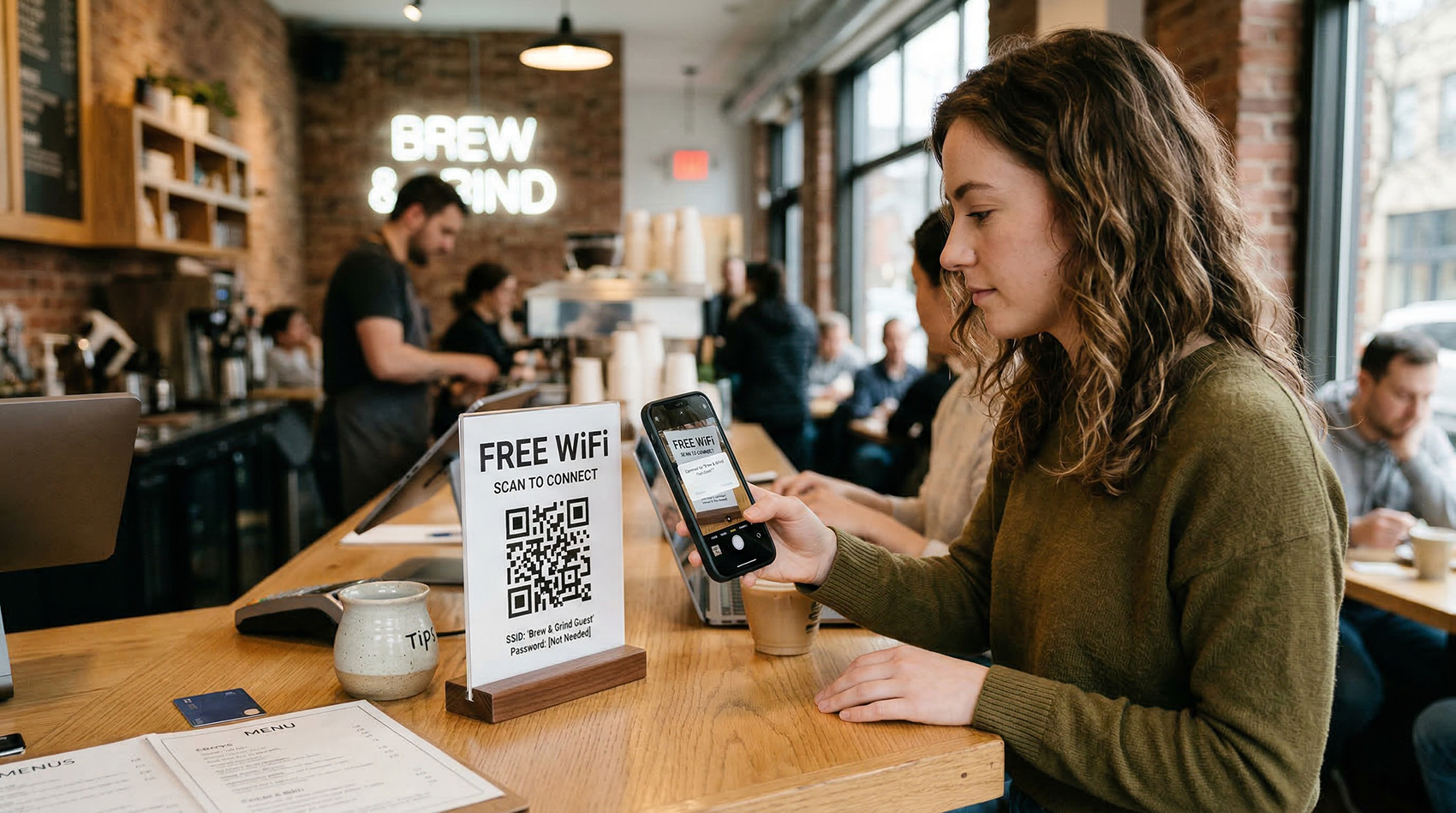
Sound Familiar?
"What's the WiFi password?" — asked 50 times a day
Customers mistype the password and blame your WiFi
Staff interrupted constantly to help with network access
Guests arrive late and can't find the password in the welcome binder
Handwritten password signs look unprofessional
Password shared verbally spreads to neighbors and passersby
The Fix: A QR Code That Connects People to WiFi
A WiFi QR code stores your network name, password, and security type. When someone scans it, their phone connects automatically — no typing, no errors, no interruptions.
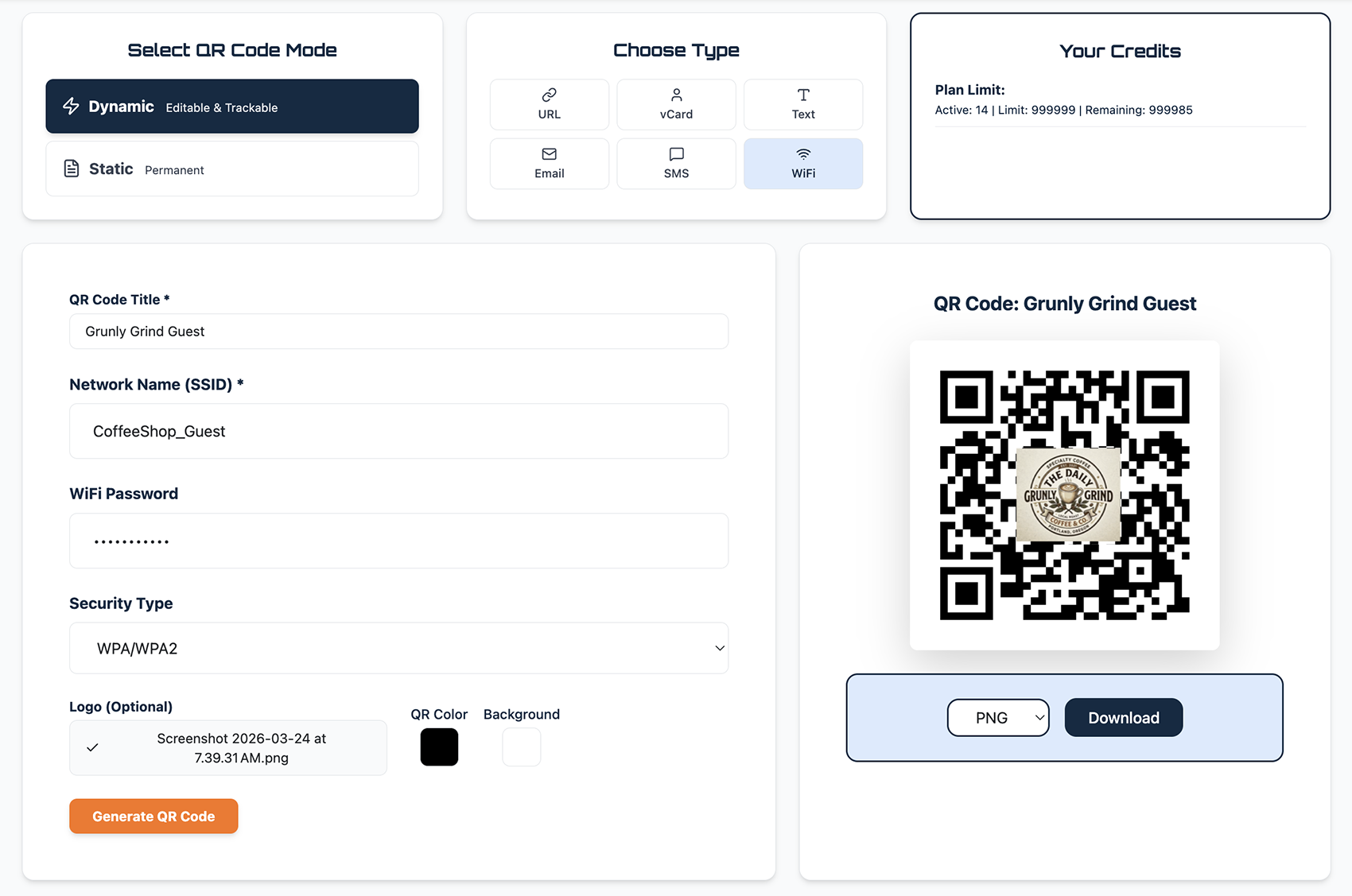
Enter your network details → generate → print. That's it.
Instant connection
Guests scan with their phone camera and tap "Join." Two seconds, connected. Works on every modern iPhone and Android.
No more password conversations
Your staff never has to spell out passwords, deal with mistyped characters, or walk someone through WiFi settings again.
Supports all security types
WPA/WPA2, WPA3, WEP, or open networks. The QR code handles authentication automatically.
Add your logo
Upload your business logo to the center of the QR code for a branded, professional look on signs and table tents.
No credit card required • Cancel anytime
How It Works
Enter network details
Network name (SSID), password, and security type — the same info on the sticker under your router.
Generate the QR code
Click generate. Optionally add your logo and customize colors to match your branding.
Download and print
Download as PNG or SVG. Print on a table tent, wall sign, welcome card, or frame it at the front desk.
Guests scan and connect
They point their phone camera at the code, tap "Join," and they're online. Done.
WiFi QR Codes for Every Business
Cafés & Restaurants
Table tents or counter signs that let every customer connect without asking staff. Pair it with your menu QR code for a seamless experience.
Hotels & Airbnbs
Frame it in the room, add it to your welcome guide, or text it to guests before arrival. No more late-night messages asking for the password.
Offices & Coworking
Post codes in conference rooms, reception, and common areas. Different codes for different networks or membership tiers.
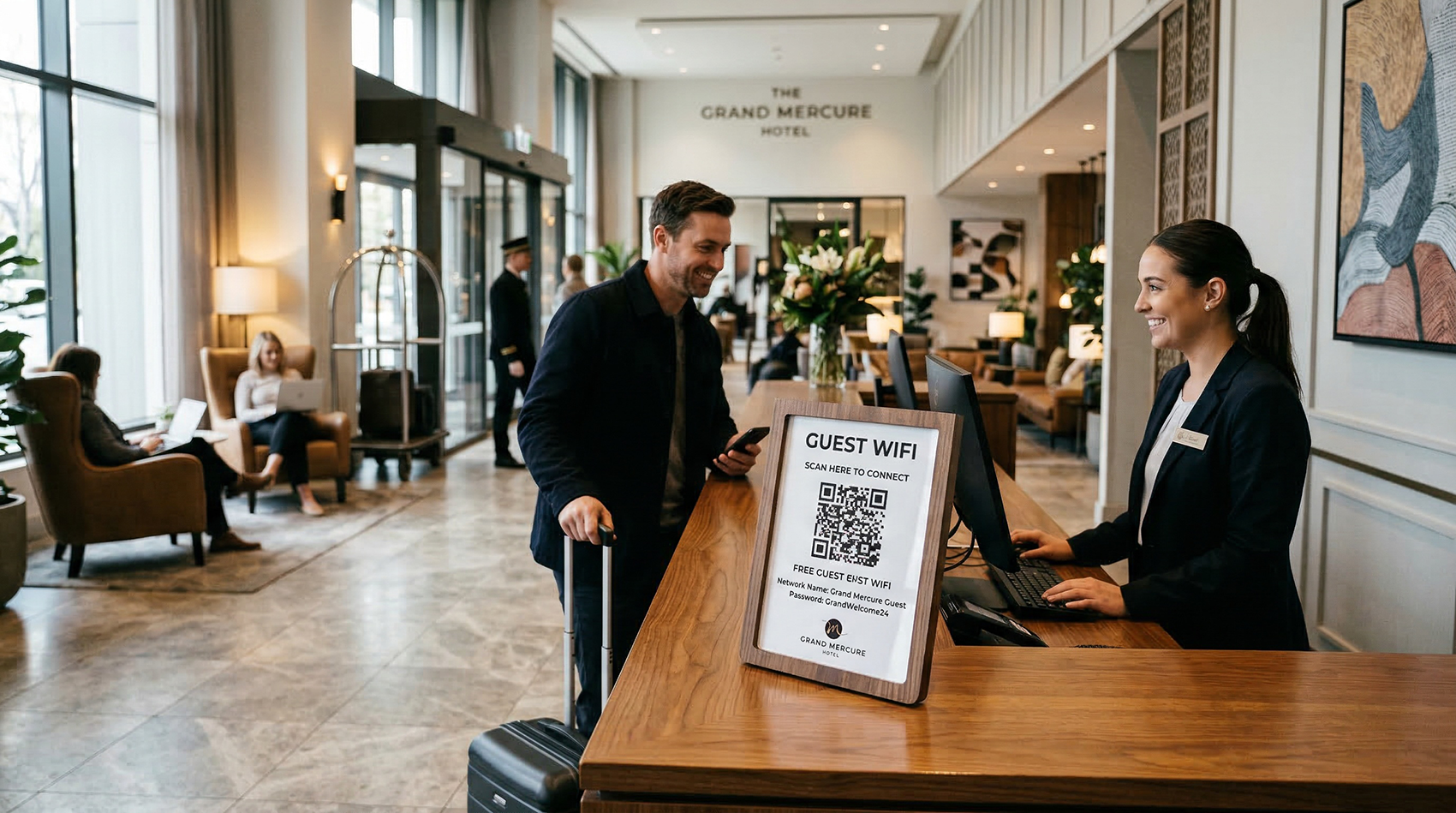
Medical & Dental Offices
Keep patients connected and occupied in the waiting room. Fewer front desk interruptions, better patient experience.
Salons, Gyms & Service Businesses
Clients in the chair or on the gym floor want to be connected. A QR code at each station or near the entrance handles it silently.
Security Tip: Always Use a Guest Network
Never share your primary business network via QR code. Your main network has your POS system, security cameras, and office computers on it. Set up a separate guest network on your router — most modern routers support this with a simple toggle.
Your WiFi QR code should point to this guest network. Customers get fast internet access. Your business systems stay completely isolated and protected.
Best Practices
Use WPA2 or WPA3 encryption — never an open network
Rotate the guest password periodically (monthly or quarterly)
Set bandwidth limits on the guest network to protect your main connection
Check signs regularly to make sure nobody placed a sticker over your code
Works on Every Modern Phone
iPhone
iOS 11 and later — covers every iPhone since the iPhone 6. Just point the Camera app at the code and tap "Join."
Android
Android 10 and later — covers the vast majority of active Android devices. Scan with the Camera app or Google Lens.
Never Spell Out a WiFi Password Again
Create your WiFi QR code in under 60 seconds. Free to start.
No credit card required • Cancel anytime
Common Questions
How does a WiFi QR code work?
The QR code stores your network name (SSID), password, and encryption type. When someone scans it, their phone reads that data and offers to join the network automatically — no manual typing needed.
What phones can scan WiFi QR codes?
iPhones running iOS 11 or later and Android devices running Android 10 or later — which covers the vast majority of smartphones in use today. No special app is needed.
Do I need to update the QR code if I change my WiFi password?
Yes. WiFi QR codes encode the password directly in the code pattern. If you change your password, generate a new QR code and replace your printed signs. This takes about two minutes.
Is it safe to share my WiFi via QR code?
Yes — as long as you share a guest network, not your primary business network. A guest network gives visitors internet access while keeping your business devices and systems isolated and protected.
Can I add my business logo to the QR code?
Yes. QR Code Better lets you upload a logo that appears in the center of your WiFi QR code. This creates a professional, branded look for your signs and table tents.
Does the WiFi QR code expire?
No. A WiFi QR code works forever — as long as the network name and password it contains are still correct. The code itself has no expiration date.