How to Create a WiFi QR Code for Your Business
Every business with a WiFi network has the same recurring interaction: someone walks in, asks for the password, and you either point at a sign they can't read from across the room, spell it out letter by letter, or write it on a napkin. Multiply that by every customer, guest, patient, or visitor you see in a week, and it adds up to a surprising amount of wasted time — on both sides.
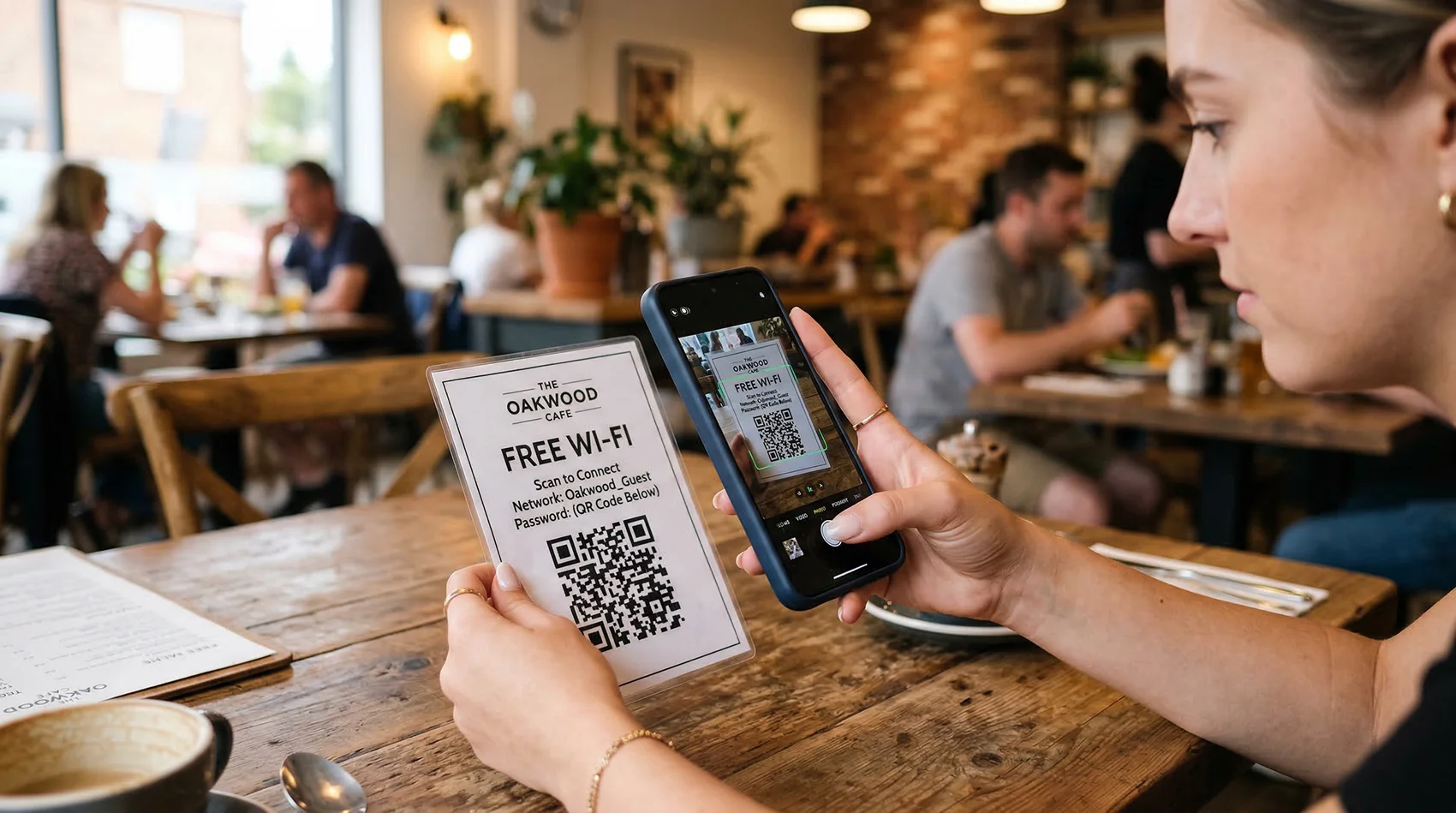
A WiFi QR code eliminates this entirely. Your customer scans the code with their phone camera, taps "Join," and they're connected. No typing. No spelling. No "is that a zero or the letter O?" conversations. It works on every modern iPhone and Android device, and it takes about two seconds.
This guide walks you through exactly how to create a WiFi QR code, where to put it, and how to use it effectively whether you run a café, an Airbnb, a dental office, a coworking space, or any other business where people need internet access.
What is a WiFi QR code?
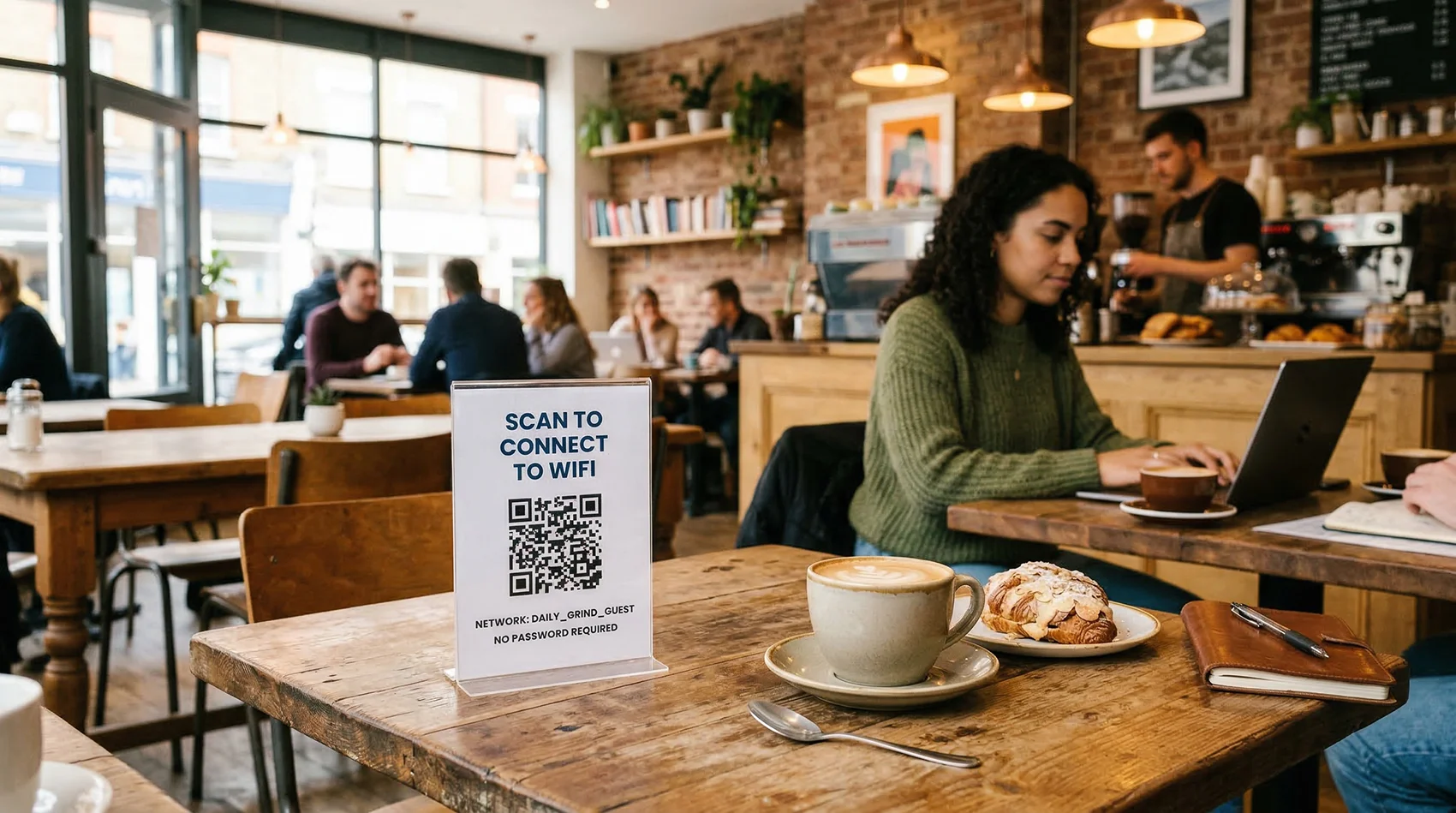
A WiFi QR code is a special type of QR code that stores your network name (SSID), password, and encryption type directly inside the code pattern. When someone scans it, their phone reads that data and offers to connect to the network automatically — no manual entry required.
This is different from a regular URL QR code. A URL code sends someone to a website. A WiFi code connects them to your network. The phone handles the connection natively through the operating system, so there's no browser involved, no app to download, and no landing page to load.
WiFi QR codes work on iPhones running iOS 11 or later (which covers every iPhone since the iPhone 6) and Android devices running Android 10 or later. That covers the vast majority of smartphones in use today. When the person scans the code, they'll see a pop-up asking if they want to join the network — one tap and they're connected.
Why your business needs one
The practical benefits go beyond just saving a few seconds at the front desk. Here's what changes when you put a WiFi QR code in your business:
You stop repeating yourself. If you or your staff spend even 30 seconds per customer explaining the WiFi password, that's real time over the course of a busy day. A QR code on a table tent, wall sign, or counter card handles it silently and permanently.
Customers actually connect. A surprising number of people won't bother asking for WiFi — they'll just use their cellular data or go without. A visible QR code with a clear "Scan to Connect" message removes the social friction. More connected customers means longer visits, which in many businesses means more spending.
You control access better. When you share a password verbally, it spreads. Neighbors, passersby, and people parked outside start using your bandwidth. With a QR code, you can change the password on your router and simply print a new QR code — one update, and the old password stops working for everyone who had it.
It looks professional. A clean WiFi QR code on a branded table tent or framed sign communicates that you've thought about the customer experience. Small details like this add up in how people perceive your business.
How to create a WiFi QR code (step by step)
Creating a WiFi QR code takes about two minutes. Here's the process from start to finish:
Step 1: Gather your network details. You need three pieces of information: your network name (SSID), your password, and your encryption type. The encryption type is almost always WPA/WPA2 for modern routers — if you're not sure, check your router's admin page or the sticker on the bottom of the router. If you're using an open network with no password, you'll select "No encryption."
Step 2: Create the QR code. Sign up for a free account on QR Code Better, select "WiFi" as your QR code type, and enter your network name, password, and encryption type. The system generates the WiFi QR code instantly.
Step 3: Customize if you want. You can change the foreground and background colors to match your branding, or add your logo in the center. Keep in mind that high contrast (dark code on light background) scans the most reliably. If you go with colored codes, test them on multiple phones before printing.
Step 4: Download and print. Download as PNG for most uses (table tents, counter signs, wall prints). If you're printing large format (poster-sized or bigger), use SVG so the code stays crisp at any size. Never screenshot a QR code — always use the download button to get the full-resolution file.
Step 5: Test before you commit. Scan the printed code with at least two phones — one iPhone, one Android. Make sure the "Join network?" prompt appears and that tapping it actually connects you. This 30-second test prevents the embarrassment of customers scanning a code that doesn't work.
Important: use a guest network, not your main one
This is the single most important security consideration with WiFi QR codes, and most guides skip over it too quickly.
Never share your primary business network via QR code. Your primary network likely has your POS system, security cameras, inventory system, office computers, and other sensitive devices on it. If customers are on the same network, they can potentially see and access those devices.
Instead, set up a separate guest network on your router. Most modern business routers and even many consumer routers support this — it's usually a toggle in your router settings called "Guest Network" or "Guest WiFi." A guest network gives visitors internet access while keeping them completely isolated from your internal devices and systems.
Your WiFi QR code should point to this guest network, not your main one. This gives your customers a fast, easy connection while keeping your business systems protected.
If you're not sure how to set up a guest network, your internet provider or router manufacturer's support page will have instructions specific to your equipment. It's usually a 5-minute setup.
Where to put your WiFi QR code
Placement matters more than most people think. A WiFi QR code that nobody sees is a WiFi QR code that nobody scans. Here are the best placements depending on your business type:
Restaurants and cafés: Table tents are the gold standard. A small acrylic stand on each table with the QR code and "Scan to Connect to WiFi" works perfectly. Customers see it right where they're sitting, and they can scan it without getting up. You can also add it to the menu itself, the counter near the register, or a wall-mounted sign near the entrance.
Airbnbs and vacation rentals: Print the QR code on your welcome guide or information binder. You can also frame it and hang it on the wall in the living room or near the router. This is especially valuable for vacation rentals because guests often arrive late, don't want to dig through a binder for the password, and just want to get online. A framed QR code on the nightstand or kitchen counter solves this instantly.
Offices and coworking spaces: Place QR codes in conference rooms, the reception area, and common spaces. For coworking spaces, you might include the QR code on the membership welcome packet or display it on digital screens throughout the space. If you have different networks for different areas or membership tiers, create separate QR codes for each.
Medical and dental offices: Waiting rooms are where patients spend the most time and most want internet access. A framed QR code in the waiting area — or printed on the sign-in sheet or patient intake paperwork — keeps patients occupied and reduces the number of times your front desk staff gets interrupted.
Retail stores: A QR code near the entrance or at the register gives customers WiFi access while they browse. This is especially useful if your store is in an area with weak cellular signal (basements, malls, older buildings with thick walls).
Hotels and B&Bs: Room key cards, bedside table tents, and the in-room information folder are all ideal placements. Some hotels also put WiFi QR codes in the elevator or lobby.
Designing your WiFi QR code sign
The QR code itself is only half the equation. The sign or card it's printed on needs to communicate clearly what the code does and why someone should scan it.
Always include a call to action. "Scan to Connect to WiFi" is clear and direct. Don't leave the QR code sitting there with no explanation — people need to know what they'll get before they'll pull out their phone. Other good options: "Free WiFi — Scan to Connect" or "Guest WiFi — Scan Here."
Include the network name. Print the SSID below the QR code so people can verify they're connecting to the right network. This also provides a fallback — if someone's phone can't scan QR codes for some reason (rare, but it happens), they can still find the network manually.
Consider whether to print the password. For some businesses, printing the password alongside the QR code makes sense as a fallback. For others, the whole point is to avoid sharing the password visibly. This depends on your security needs and your customer base. In an Airbnb, printing both the QR code and the password is convenient. In a business with sensitive data on the network, the QR code alone (pointing to a guest network) is cleaner.
Size the QR code appropriately. For a table tent scanned from arm's length, 2-3 inches across is ideal. For a wall sign scanned from a few feet away, go 4-6 inches. The general rule is the code should be about 1/10th the scan distance — if someone is 3 feet away, the code should be at least 3.5 inches. For detailed sizing guidance, see our QR code minimum size guide.
Static vs. dynamic: which should you use for WiFi?
WiFi QR codes are inherently static — the network credentials are encoded directly into the QR code pattern. This means the code works completely offline. There's no server involved, no redirect, and no internet connection needed for the scan itself (which makes sense, since the whole point is to get the person connected to internet).
This is different from URL-based QR codes, where dynamic codes let you change the destination after printing. With WiFi QR codes, the credentials are baked in. If you change your WiFi password, you'll need to generate and print a new QR code.
That said, this isn't a drawback in practice. Most businesses don't change their guest WiFi password frequently. And when you do change it, generating a new QR code takes two minutes and printing a new sign takes five. The simplicity and reliability of a static WiFi code — no server dependency, no loading time, instant connection — is worth the occasional reprint.
If you want to track how many people are using your WiFi QR code, you have a couple of options. You can create a dynamic URL QR code that points to a simple landing page with a "Connect to WiFi" button — this gives you scan tracking but adds an extra step for the user. Or you can simply monitor connected devices on your router's admin panel to see how many people are on your guest network.
Security best practices
WiFi QR codes are convenient, but they touch your network — so it's worth being thoughtful about security.
Always use a guest network. This is worth repeating. Never point a public WiFi QR code at your primary business network. Guest network isolation keeps your internal systems safe.
Use WPA2 or WPA3 encryption. Never run an open (unencrypted) guest network if you can avoid it. WPA2 is the standard for most routers. If your router supports WPA3, even better — it provides stronger protection. Your WiFi QR code will include the encryption type, so the phone handles it automatically.
Rotate your password periodically. How often depends on your business. A café might change it monthly or quarterly. An Airbnb should change it between every guest. A medical office might change it quarterly. When you change the password, generate a new QR code and replace the printed signs.
Set bandwidth limits on the guest network. Most business routers let you cap the bandwidth available to the guest network. This prevents one person streaming video from killing the connection for everyone else — and protects your business systems from bandwidth starvation.
Watch for QR code tampering. In a public-facing business, be aware that someone could potentially stick their own QR code over yours to redirect people to a malicious network. Use printed signs that are framed, laminated, or otherwise difficult to cover up. If you use table tents, check them periodically to make sure nobody has placed a sticker over the code. This is part of the broader topic of QR code security and quishing prevention.

Common mistakes to avoid
Sharing your main network instead of a guest network. This is the biggest mistake and the most common one. It's easy to just use whatever network is already set up, but the security risk isn't worth the convenience. Take the 5 minutes to set up a guest network.
Forgetting to update the QR code after changing the password. If you rotate your WiFi password (which you should), make sure you generate a new QR code and replace the old signs. A QR code with an outdated password is worse than no QR code at all — it creates a bad first impression and forces the customer to ask for help anyway.
Printing the code too small. A WiFi QR code on a table tent should be at least 2 inches across. On a wall sign, at least 4 inches. If people have to hold their phone right up against the sign to scan, it defeats the purpose. Read our guide on QR code minimum size for exact measurements based on scan distance.
No call to action. A QR code sitting on a wall with no text explaining what it does will be ignored by most people. Always label it: "Scan to Connect to WiFi" or "Free WiFi — Scan Here." This applies to all QR codes, not just WiFi — we cover this in depth in our guide on the best way to start using QR codes.
Not testing after printing. This takes 30 seconds and saves you from the embarrassment of a non-working code. Scan it with two phones. Verify the connection works. Do this every time you print a new code, especially after a password change.
Using a low-contrast color scheme. Dark QR codes on light backgrounds scan reliably. Light codes on dark backgrounds, or low-contrast color combinations, can cause scanning problems. If you want to use your brand colors, test thoroughly before committing to a print run.
WiFi QR codes for specific business types
While the setup process is the same regardless of your business, the strategy and placement differ. Here are specific recommendations for the most common use cases:
Restaurants and cafés. Put the QR code on every table, ideally on an acrylic table tent or built into the menu holder. Consider combining it with your menu QR code — one side of the tent for WiFi, the other for the menu. For the full menu QR code setup, see our restaurant menu QR code guide.
Airbnbs and short-term rentals. This is arguably the highest-impact use case. Guests consistently rate WiFi access as a top priority, and fumbling with passwords on arrival creates a poor first impression. Frame the QR code prominently near the entrance or in the main living area. Include it in your welcome message and your listing description. Some hosts even text the QR code image to guests before arrival.
Medical and dental waiting rooms. Position the QR code where patients spend the most time — the waiting area. A framed sign on the wall at eye level, or a small card on the side table, works well. Patients who can browse the internet while waiting are calmer, less likely to approach the front desk repeatedly, and generally have a better experience.
Auto repair shops and service centers. Customers waiting for their car often have 30 minutes to several hours to fill. A WiFi QR code in the waiting area turns dead time into a positive part of the customer experience.
Salons and barbershops. Clients in the chair for 30-60 minutes want to be on their phones. A QR code at each station or in the waiting area keeps them connected and happy.
Gyms and fitness studios. Members want to stream music, watch videos, or check their workout apps. A WiFi QR code posted near the entrance and in the locker room area means fewer people eating through their cellular data — and fewer complaints about signal dead zones in the building.
Troubleshooting
If your WiFi QR code isn't working as expected, run through these checks:
"Join network?" prompt doesn't appear. The most common cause is the phone's camera app not being set up to scan QR codes. On iPhones, this is enabled by default in the Camera app. On older Android phones, the user may need to enable "Scan QR codes" in camera settings or use Google Lens. If the prompt still doesn't appear, the QR code data may be malformed — regenerate it and try again.
Prompt appears but connection fails. Double-check that the password in the QR code exactly matches the actual network password — including capitalization, spaces, and special characters. Also verify the encryption type is correct (WPA/WPA2 vs. WPA3 vs. No encryption). The most common error is a simple typo in the password when creating the code.
Code won't scan at all. Check the print quality and size. A blurry print, a code that's too small, or poor contrast between the code and background will prevent scanning. Try scanning with your phone flashlight on to improve contrast. If the code still won't scan, regenerate it and reprint. For a comprehensive list of scanning issues, see our guide on why your QR code won't scan.
Works on iPhone but not Android (or vice versa). This is usually an encryption type mismatch. Some older Android devices handle WPA3 differently. If you're seeing inconsistent behavior, try setting your QR code to WPA/WPA2 — it's compatible with the widest range of devices.
Get started
A WiFi QR code is one of the simplest, most immediately useful QR codes you can create. No ongoing management, no complex strategy — just a code that saves your customers and staff time every single day.
Here's the quick version:
- Set up a guest network on your router (separate from your main network).
- Create a free account on QR Code Better and generate a WiFi QR code with your guest network credentials.
- Download and print the code on a sign, table tent, or card with "Scan to Connect to WiFi" as a call to action.
- Test with two phones.
- Place it where customers will see it.
That's it. Five minutes of setup, and you'll never spell out a WiFi password again.
Create your WiFi QR code now — free trial, no credit card required.