How to Create a QR Code for Your Restaurant Menu
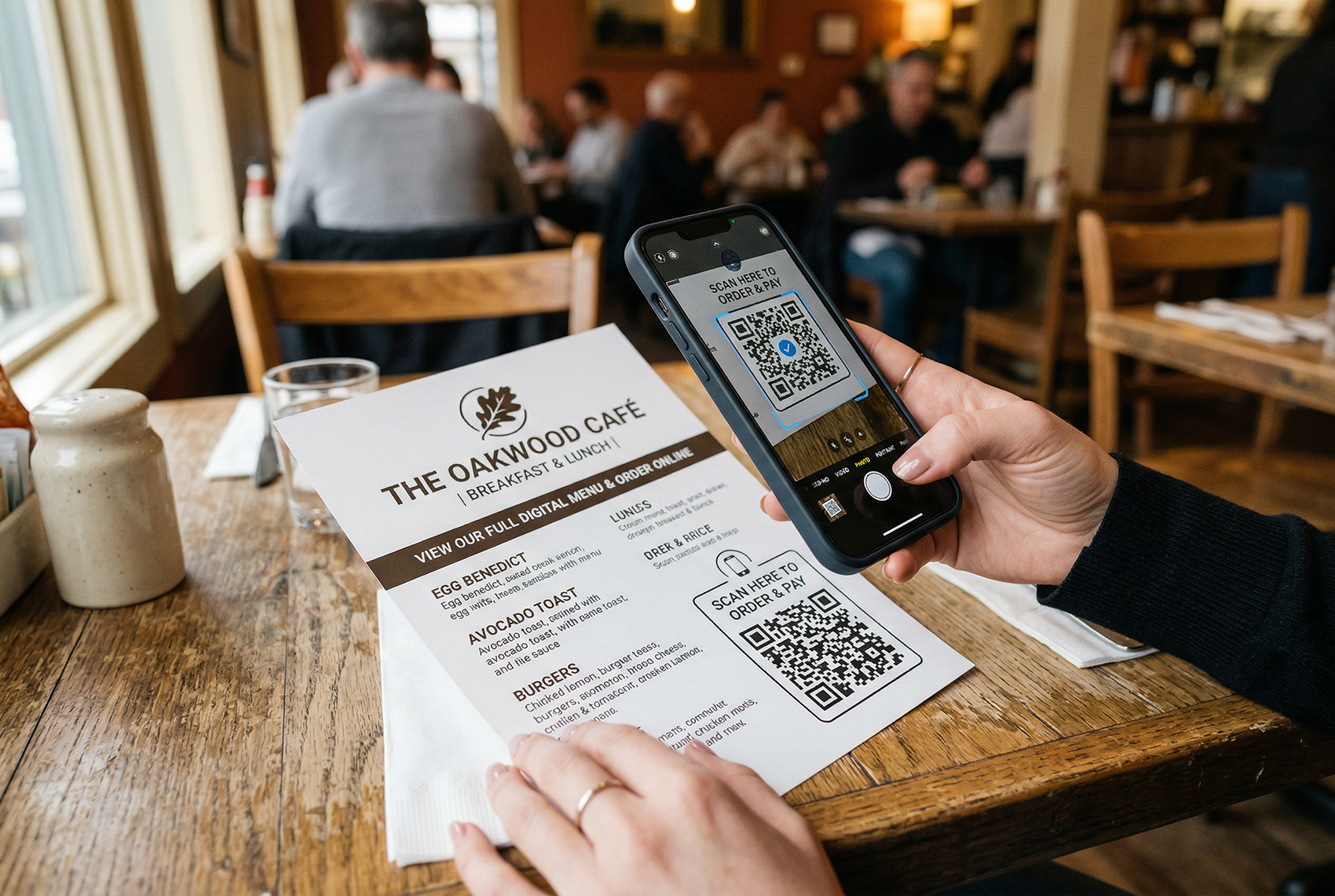
If you run a restaurant, you already know the pain of printed menus. Prices go up, a dish gets pulled, a seasonal item rolls in — and suddenly you're paying a printer to rerun 200 menus that were current for exactly six weeks. Then there's the wear: spilled drinks, sticky fingers, and the slow accumulation of grime that turns even a well-designed menu into something you'd rather not hand to a customer.
QR code menus solve the printing cycle entirely. A single QR code on your table connects customers to a digital menu they view on their own phone. When you need to change a price, remove an item, or add a lunch special, you update the link — not the physical code. The same printed QR code that sits on your table today can point to a completely different menu tomorrow, without reprinting a single thing.
This guide walks through every step of creating, printing, sizing, and placing QR code menus so they actually work in a real restaurant environment — not just in theory.
Why Restaurants Are Staying With QR Code Menus
QR code menus got their start as a pandemic necessity, but the restaurants that kept them did so because the operational benefits are hard to ignore once you've experienced them. The cost savings alone are significant — a busy restaurant might spend $1,500 to $3,000 a year on menu reprints between seasonal changes, price adjustments, and normal wear and tear. A dynamic QR code eliminates that expense entirely.
But cost is only part of the picture. Digital menus give you capabilities that printed menus physically cannot offer. You can mark a dish as sold out the moment the kitchen runs out, instead of having servers apologize to every table that tries to order it. You can add a weekend brunch special on Thursday night and remove it Monday morning. You can show high-resolution photos of every dish, include allergen information and calorie counts, and even link directly to an online ordering page — all from the same QR code that's been sitting on your table since day one.
There's also the customer experience side. People are comfortable with QR menus now. They can zoom in on their phone, share the menu link with someone who hasn't arrived yet, or translate it into another language using their browser. For customers with visual impairments, a digital menu on their own device — where they control the text size — is significantly more accessible than a printed menu with 10-point type.
Step 1: Get Your Menu Online
Before you create a QR code, you need a destination for it to point to. Your digital menu needs to live at a URL that customers will load when they scan. There are three practical approaches, and the right one depends on your situation.
Your own website. If your restaurant already has a website, adding a menu page is the most professional option. You control the design, the branding, and the updates. A simple HTML page with your menu items, prices, and photos works well on mobile and loads fast. The downside is that you (or someone on your team) needs to be comfortable editing a web page when the menu changes.
A PDF hosted online. If you already have a beautifully designed menu in PDF format, you can upload it to Google Drive, Dropbox, or your own web hosting and link to it directly. This preserves your existing design work, but updating means creating a new PDF and re-uploading it. For restaurants that change their menu infrequently — say, seasonally — this works fine.
A third-party menu platform. Services like Square Online, Toast, or dedicated menu builders give you a hosted page with drag-and-drop editing. Some include built-in online ordering. These are the easiest to update but come with monthly fees and less design control.
Whichever approach you use, make sure the page is mobile-optimized. Nearly every customer scanning your QR code will be on a phone. If the menu requires pinching and zooming to read, or if it loads slowly because of uncompressed images, you'll get complaints — or worse, customers will just put their phone down and ask for a paper menu.
Step 2: Create a Dynamic QR Code
This is the most important decision in the entire process: use a dynamic QR code, not a static one.
A static QR code permanently encodes your menu URL into the pattern itself. If the URL ever changes — you switch menu platforms, redesign your website, or even fix a typo in the address — you have to reprint every QR code in the restaurant. That defeats the entire purpose.
A dynamic QR code works differently. It encodes a short redirect URL that you control from a dashboard. When a customer scans it, they hit the redirect, which forwards them to whatever destination you've currently set. You can change that destination anytime — new menu page, seasonal PDF, online ordering link — without touching the printed code.
For a detailed breakdown of how this works and why it matters, read our guide on static vs dynamic QR codes.
Creating your QR code on QR Code Better takes about 60 seconds. Enter your menu URL, select Dynamic mode, customize the colors to match your restaurant's branding if you want, optionally add your logo to the center, and download in print-ready format. That's it — your menu QR code is ready to print.
Step 3: Link to Your Online Ordering Page
Here's something most restaurants miss: your QR code doesn't have to point only to a static menu page. If you use a service like Square Online, Toast, DoorDash Storefront, or any platform that gives customers a direct ordering URL, you can point your dynamic QR code straight to that ordering page.
Think about the workflow from the customer's perspective. They sit down, scan the QR code, and land on a page where they can browse the menu and place their order directly from their phone. No waiting for a server to take the order. No miscommunication. The order goes straight to the kitchen.
This works especially well for fast-casual restaurants, food courts, coffee shops, and any environment where speed matters more than the full-service dining experience. Even full-service restaurants can benefit — a QR code linking to a drinks menu with ordering capability lets customers grab a round while they're waiting for their server.
And because you're using a dynamic QR code, you can switch the destination depending on the situation. Point it to your dine-in menu during service hours, swap it to your takeout ordering page after hours, or redirect to a catering inquiry form during off-season. One printed QR code, multiple uses.
Step 4: Size Your QR Codes for the Scanning Distance
This is where most restaurants get it wrong. A QR code that's too small won't scan reliably, and one that's the wrong size for its placement creates a frustrating experience that makes customers give up and ask for a paper menu.
The rule of thumb is simple: your QR code should be at least 1/10th of the typical scanning distance. If someone is scanning from 2 feet away, the code should be at least 2.4 inches wide. From 6 feet, at least 7.2 inches.
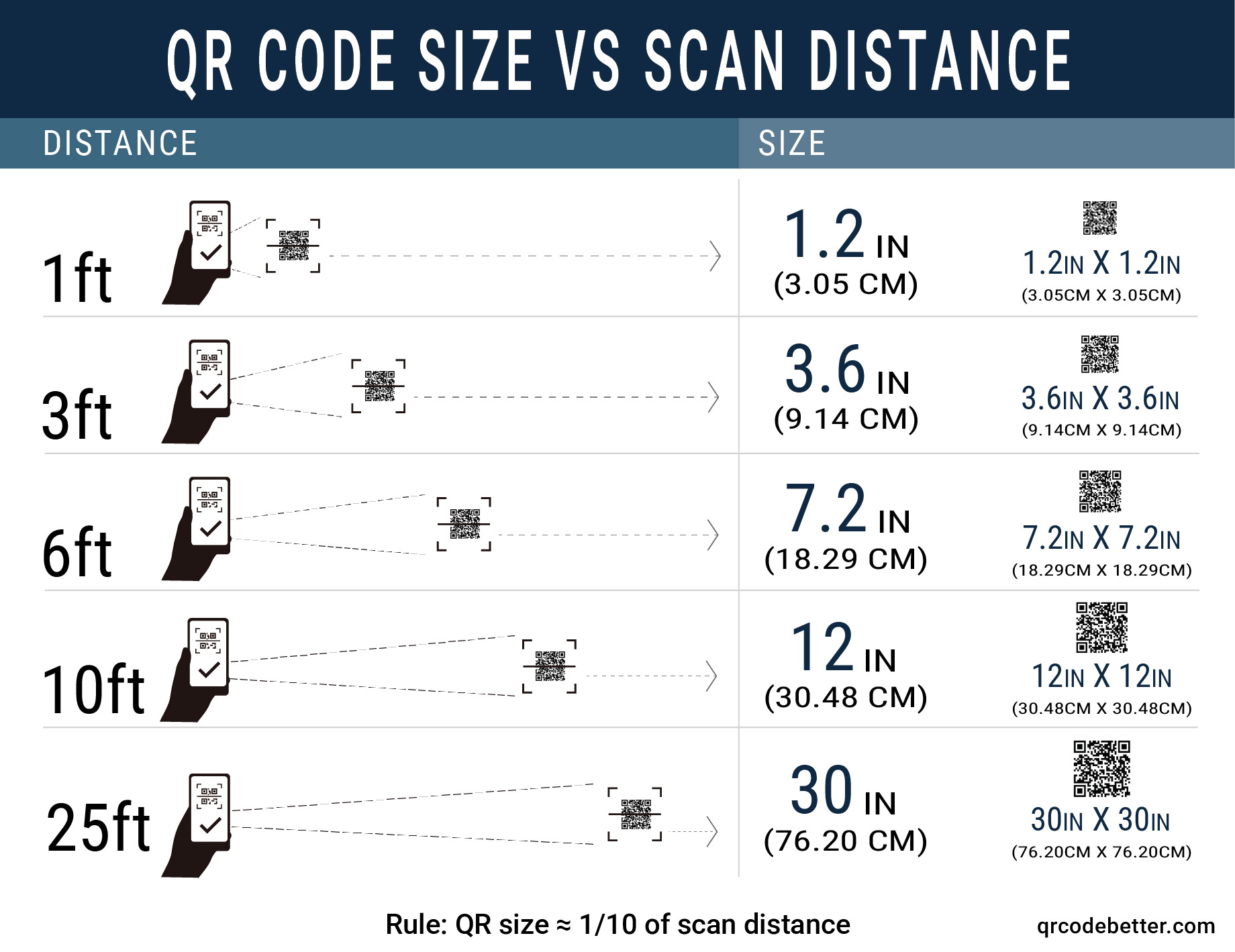
Here's what that looks like for typical restaurant placements:
Table tents and table stickers — customers scan from about 1 to 2 feet while seated. A QR code of 2 to 3 inches square works well. This is the most common restaurant QR placement and the most forgiving in terms of size, since the scanning distance is short.
Counter displays at the register — customers scan while standing, usually from 2 to 3 feet away. Go with 3 to 4 inches square. Make sure the display is angled toward the customer, not flat on the counter where it catches glare from overhead lights.
Wall-mounted menus or posters — customers scan from 3 to 6 feet away, sometimes while standing in line. You need 4 to 6 inches square minimum. Bigger is always better for wall placement because you can't control exactly where people will stand.
Window stickers (visible from outside) — customers scan from the sidewalk, potentially 6 to 10 feet away and through glass. Go with 6 to 8 inches square and make sure the sticker is on the inside of the glass to avoid weather damage. Keep in mind that glass reflections can interfere with scanning, so placement matters — avoid spots that catch direct sunlight.
For a full sizing calculator and detailed recommendations by use case, see our complete QR code minimum size guide.
Step 5: Print for Scannability — Not Just Appearance
A QR code can look perfect on your screen and completely fail in print. The gap between what you see on a monitor and what a phone camera can actually read off a printed surface is where most scanning problems happen. Getting the print right is just as important as getting the size right.
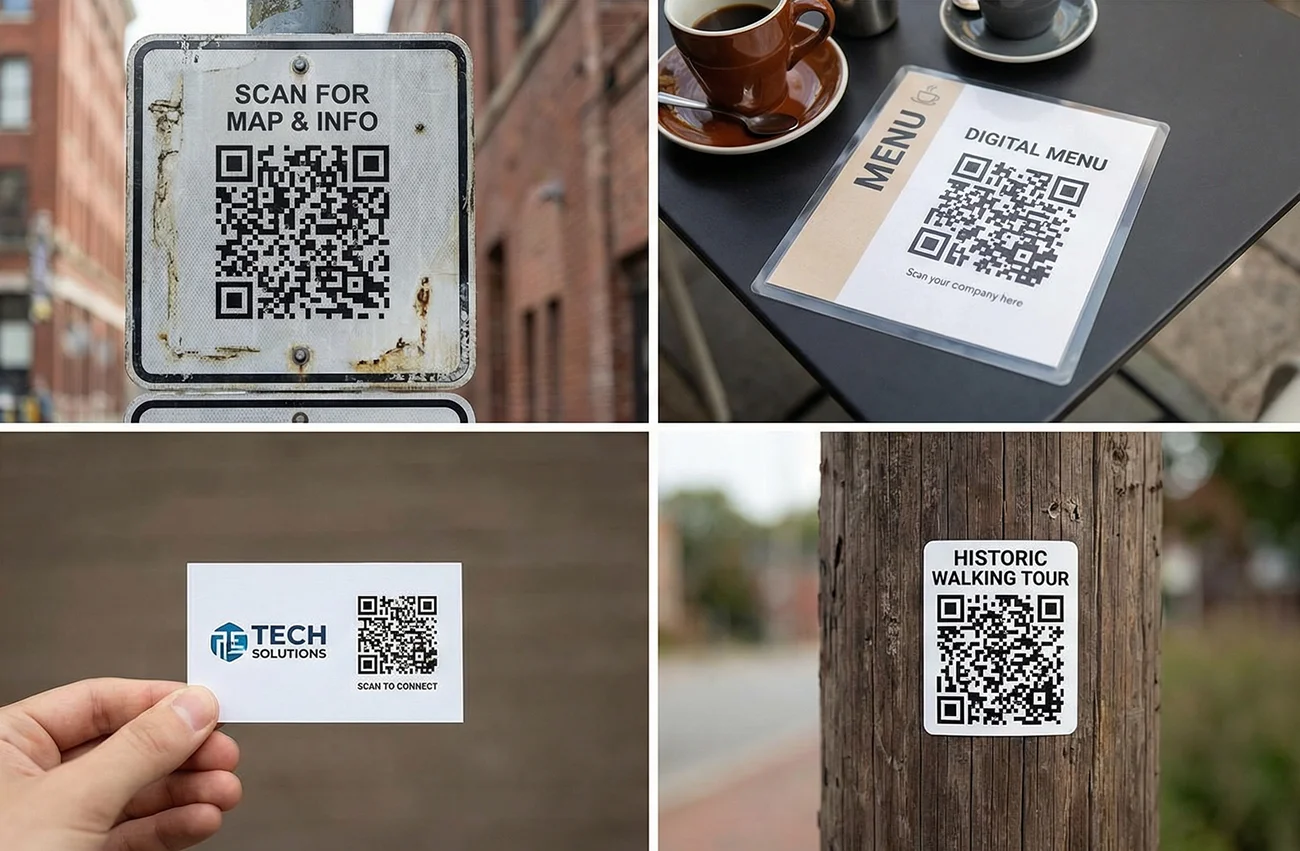
Export at high resolution. Always download your QR code at 300 DPI or higher for anything that's going to be printed. A low-resolution QR code might look fine at screen size, but when it's printed, the individual modules (the small squares that make up the code) get soft and blurry. Phone cameras need crisp edges to read those modules accurately. If you're printing large format — posters or banners — use SVG or PDF vector format so the code scales cleanly to any size without losing sharpness.
Maintain strong contrast. The classic black-on-white QR code exists for a reason — it provides maximum contrast, which makes scanning reliable in almost any lighting condition. You can customize your QR code colors to match your branding, but keep the fundamentals: dark modules on a light background. A navy blue code on a white background works. A light gray code on a cream background does not. If you're printing on colored paper or a textured surface, test before committing to a full print run.
Protect the quiet zone. Every QR code needs a white border (called the "quiet zone") around it — typically the width of about four modules. This border tells the phone camera where the code starts and ends. Crowding text, logos, or design elements right up to the edge of the code is one of the most common reasons QR codes fail to scan. Give your code breathing room.
Watch out for surface finishes. Glossy lamination, UV coating, and high-gloss paper all create reflections that can interfere with phone cameras. Matte finishes scan more reliably, especially in restaurants with bright overhead lighting. If you're printing table tents with lamination for durability (which makes sense in a restaurant environment), choose matte lamination over gloss.
Test before you print in quantity. Print one sample and scan it with at least three different phones — an older iPhone, a newer iPhone, and an Android device. Scan in the actual lighting conditions of your restaurant, from the actual distance customers will be sitting or standing. If it scans quickly and reliably on all three, you're good. If any phone struggles, increase the size, boost the contrast, or simplify the code before running the full batch.
Where to Place QR Codes in Your Restaurant
Placement determines whether customers actually use your QR code or ignore it. The best QR code in the world does nothing if people don't see it or can't easily scan it.
Every table — but not in the center. The most effective placement is a table tent or sticker positioned at the edge or corner of the table, where it won't be covered by plates, glasses, or elbows. Center-of-table placement sounds logical but fails in practice because the first thing that happens when food arrives is the table tent gets moved to make room. Corner or edge placement keeps the code accessible throughout the meal.
The host stand or waiting area. Customers who are waiting for a table have nothing to do. A QR code with a clear "Browse Our Menu" message gives them something useful and gets them thinking about what to order before they sit down. This reduces ordering time once they're seated, which improves table turnover.
The front door or window. A window-facing QR code lets people walking by check out your menu before deciding to come in. This is particularly effective for restaurants in foot-traffic areas. Include "Scan to See Our Menu" text large enough to read from the sidewalk.
Receipts. Adding a QR code to printed receipts that links to your takeout or delivery ordering page gives customers a convenient way to reorder. They've already eaten your food and liked it enough to pay — make it easy for them to come back.
Always include a clear call to action. Don't assume everyone knows what to do with a QR code. Add text like "Scan for Menu," "Point Your Camera Here," or "View Our Menu" near the code. For older customers who may be less familiar with QR scanning, a brief instruction like "Open your phone camera and point it at the code" removes the friction.
Consider Using QR Codes in Your Advertising Too
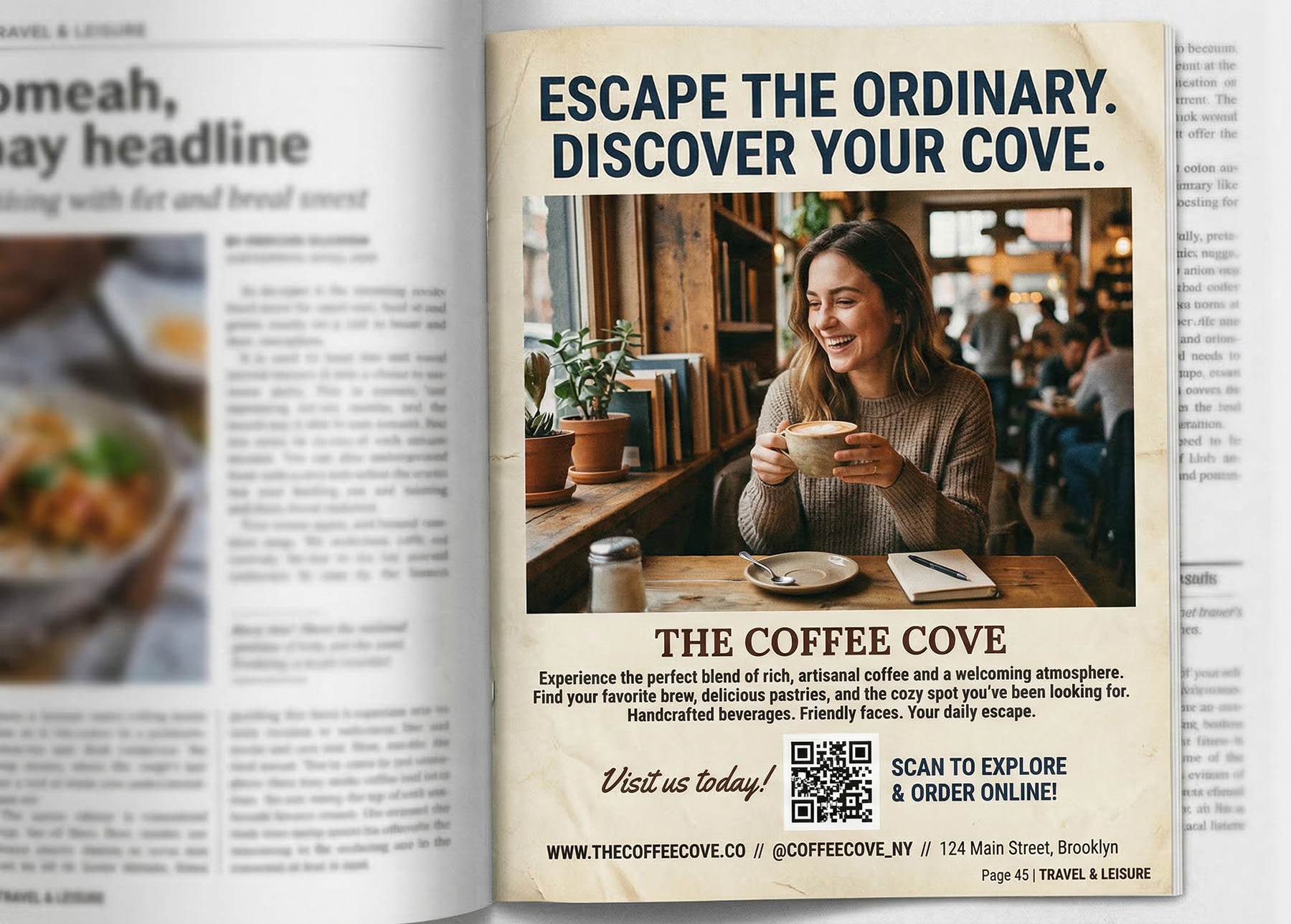
Restaurant QR codes don't have to stay inside your four walls. If you're running any kind of print advertising — local magazine ads, newspaper inserts, direct mail postcards, community event flyers — a QR code turns a passive ad into an interactive experience.
Instead of hoping someone reads your ad, remembers your restaurant name, and looks you up later, a QR code gives them an immediate action: scan, see the menu, maybe even place an order. The gap between "that looks interesting" and "I just placed a takeout order" shrinks from days to seconds.
For magazine and newspaper ads, size the QR code at 1 to 1.5 inches square minimum — readers hold print media about 12 to 18 inches from their face. For direct mail postcards, 1.5 to 2 inches works well. Always use a dynamic code so you can track which ad placements are actually driving scans and swap out the destination if you run different promotions.
For the full strategy on QR codes in advertising, see our guide on QR codes for advertising.
Keep Your Codes Organized As You Scale
A single QR code for your main dining menu is a good start. But most restaurants end up with several: one for the dinner menu, one for the lunch menu, one for the bar, one for desserts, one for takeout ordering, one on the window, one on receipts, maybe one for a customer feedback survey. That's eight codes — and if each one is a random file on your desktop named "QR_final_v3.png," you've got a management problem.
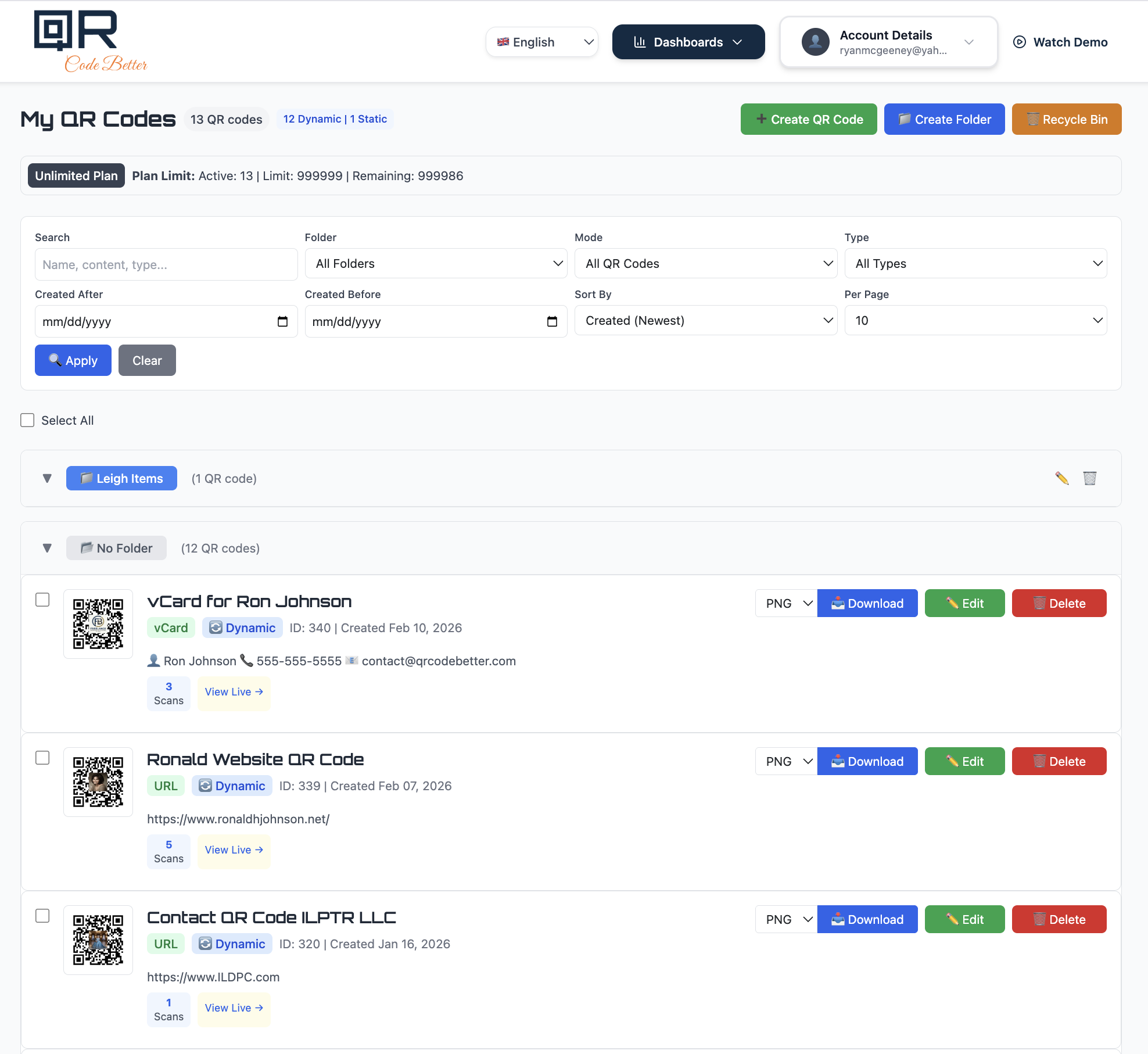
QR Code Better's dashboard lets you organize all your codes in one place with folders, labels, and clear naming. You can see at a glance which codes are getting scanned and which aren't, edit any code's destination URL without logging into multiple systems, and download any code in the format you need for your next print run. When your seasonal menu changes, you don't have to dig through files or remember which code goes where — you open the dashboard, find the right code by name, update the URL, and you're done.
This kind of organization matters more than you'd expect. When a manager needs to update the dessert menu on a Friday night and the only person who knows which QR code file goes to which URL is off for the weekend, having everything clearly labeled in a central dashboard eliminates the guesswork.
Common Mistakes to Avoid
Using static codes instead of dynamic. This is the most expensive mistake. One URL change — a website redesign, a platform switch, even a typo — and every printed static QR code in your restaurant is dead. Dynamic codes cost a few dollars a month and save you from reprints that cost hundreds.
Printing too small. If customers have to hold their phone two inches from the code and wait three seconds for it to read, they'll give up. Follow the 1/10th distance rule and err on the side of bigger.
Forgetting to test in real conditions. Your QR code scans fine under your office desk lamp. But does it scan under the warm, dim lighting in your dining room? Does it scan through the glare on a laminated table tent? Test in the actual environment.
No fallback for customers without smartphones. Not everyone has a smartphone, and not everyone wants to use one during dinner. Keep a small number of printed menus behind the host stand for anyone who asks. QR codes should be the primary option, not the only option.
Letting the digital menu go stale. The entire point of a QR code menu is real-time updates. If customers scan and see last season's prices or dishes you haven't served in weeks, you've broken their trust. Assign someone to own menu updates, and build it into your existing workflow for changing the menu — when the kitchen updates the menu, the digital version gets updated at the same time.
Track What's Working
With dynamic QR codes, you get scan analytics that tell you what's actually happening with your menus. You can see how many scans each code gets per day, which tables or locations drive the most engagement, what devices your customers are using, and when peak scanning times occur.
This data is actionable. If the table tents in your patio section are getting twice the scans of indoor tables, maybe your outdoor customers are more QR-friendly and you should focus your best digital menu experience there. If scan counts drop off at dinner compared to lunch, maybe the lighting is causing scanning problems — switch to larger codes or matte-finish table tents for evening service.
For a complete guide on reading and acting on QR code scan data, see how to track QR code scans.
Get Started
Start with one dynamic QR code for your main menu. Print it on a table tent, test it at a few tables, and see how customers respond. Once you're confident in the setup, expand to separate codes for your bar menu, dessert menu, and takeout ordering page.
The total cost is a few minutes of setup and a few dollars a month for dynamic codes. The savings in printing costs alone pay for it within the first month — and you'll never have to apologize to a customer for an outdated menu again.
Create your restaurant menu QR code now — dynamic codes with scan tracking included in all plans.